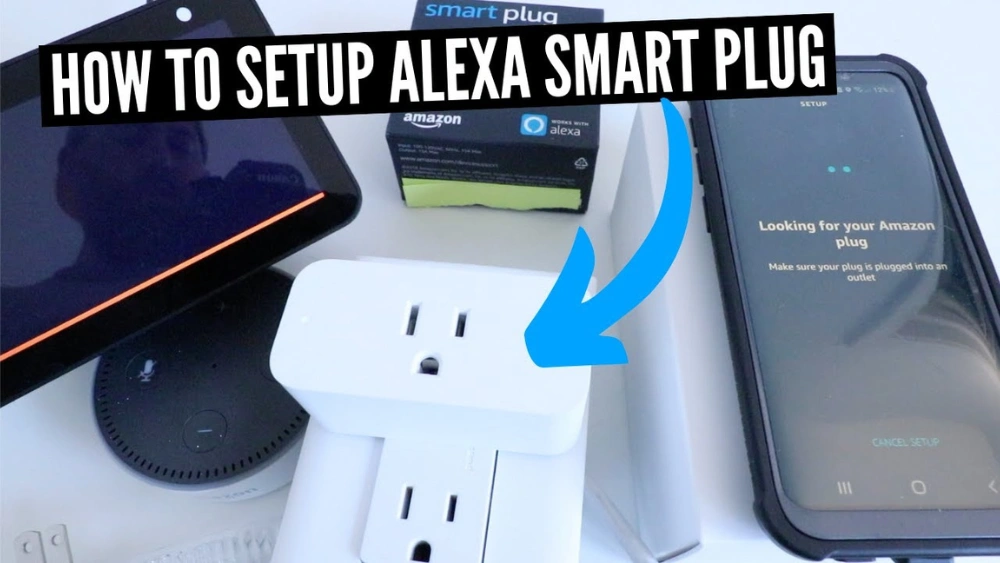
Imagine controlling your home devices with just your voice, making life easier and more convenient. Setting up a smart plug with Alexa lets you do exactly that.
Whether you want to turn on a lamp before you get home or schedule your coffee maker to start brewing in the morning, this simple setup can change how you interact with your space. If you’ve ever wondered how to connect your smart plug to Alexa quickly and without hassle, you’re in the right place.
Keep reading, and you’ll have your smart plug working seamlessly with Alexa in no time.

Credit: device.report
Choosing The Right Smart Plug
Choosing the right smart plug is essential for a smooth Alexa experience. It affects how well your devices work and how simple the setup will be. Consider key factors like compatibility, power limits, and extra features.
Compatibility With Alexa
Not all smart plugs work with Alexa. Check if the plug supports Alexa voice commands. Look for terms like “Works with Alexa” on the packaging or product details. This ensures easy control through your Echo or other Alexa devices.
Power Rating Considerations
Smart plugs have power limits. Match the plug’s rating with the device you want to control. For example, high-power devices like heaters need plugs with higher wattage. Using a plug with too low a rating can cause failures or safety risks.
Additional Features
Extra features can improve your smart plug experience. Some plugs offer energy monitoring to track usage. Others have scheduling options to automate devices. Look for features that fit your daily needs for convenience and control.
Preparing For Setup
Preparing your smart plug for setup with Alexa is a simple process. It starts with making sure you have everything ready. This saves time and reduces frustration during setup.
Good preparation leads to a smooth and quick connection between your device and Alexa. Follow these tips to get ready before you begin.
Gathering Necessary Equipment
- Smart plug device
- Smartphone or tablet with Alexa app installed
- Wi-Fi network name and password
- Power outlet near the device you want to control
- Amazon Alexa account
Having these items ready makes the setup process faster. Check your smart plug’s box for any specific instructions or accessories.
Ensuring Strong Wi-fi Connection
A strong Wi-Fi signal is crucial for your smart plug to work well with Alexa. Place the smart plug close to your router during setup.
Test your Wi-Fi speed using a phone or computer. Slow or unstable Wi-Fi can cause connection problems.
Try to avoid using public or guest networks, as they may block the smart plug from connecting.
Downloading The Alexa App
Downloading the Alexa app is the first step to connect your smart plug. The app controls your smart devices easily. It lets Alexa recognize and manage your smart plug. The app works on both Android and iOS devices. You need a stable internet connection for smooth installation. Follow simple steps to get the app ready on your phone.
App Installation Process
Open the app store on your phone. For Android, use Google Play Store. For iPhone, use the Apple App Store. Search for “Amazon Alexa” in the search bar. Find the official app by Amazon. Tap the download or install button. Wait for the app to download completely. Once done, open the app to start setup.
Creating Or Logging Into Your Account
After opening the app, you need to sign in. Use your existing Amazon account if you have one. Enter your email and password carefully. If you don’t have an account, create a new one. Tap on “Create account” and follow the instructions. Provide your name, email, and password. Verify your email if asked. Logging in gives access to all Alexa features.
Setting Up The Smart Plug
Setting up your smart plug is the first step to making your home smarter and more convenient. It might seem simple, but each stage needs your attention to ensure everything works smoothly. Let’s walk through the process so you can get your devices connected and controlled by Alexa in no time.
Connecting The Plug To Power
Start by plugging your smart plug into a power outlet. Make sure the outlet is working and easy to reach, as the plug will need to stay there permanently. Some smart plugs have indicator lights—watch for a blinking light which usually means it’s ready to pair.
If you don’t see any lights, try a different outlet or check your plug’s manual. It’s tempting to rush this step, but a stable power connection makes the rest of the setup much smoother.
Pairing With The Alexa App
Open the Alexa app on your phone and tap the “Devices” tab. Select the “+” icon to add a new device, then choose “Plug” from the list. Follow the prompts to connect the smart plug to your home Wi-Fi network.
You’ll often be asked to put the smart plug into pairing mode—usually done by holding a button on the plug until the light blinks. If your Wi-Fi is crowded or weak, pairing might take longer or fail, so consider moving closer to the router during setup.
Once connected, you can name your plug in the app. Pick a name that’s easy to say and remember, like “Living Room Lamp” or “Coffee Maker.” This makes voice commands with Alexa much more natural.
Troubleshooting Common Issues
If Alexa doesn’t recognize the plug, double-check that your phone and the plug are on the same Wi-Fi network. Also, verify that your router supports 2.4 GHz, as many smart plugs don’t work with 5 GHz networks.
Sometimes, simply unplugging the smart plug and plugging it back in resets the connection. If the app shows errors, force closing and reopening it can help.
Still stuck? Try restarting your router or resetting the smart plug to factory settings. Have you ever found that a quick reset solves problems you thought were complicated? It’s a handy trick to remember.
Configuring Smart Plug Settings
Configuring your smart plug settings is where the real convenience begins. It’s not just about plugging in a device; it’s about customizing how it works with your daily life. Proper setup ensures your smart plug responds exactly how and when you want, making your home smarter and your routines smoother.
Naming Your Device
Giving your smart plug a clear, memorable name helps Alexa recognize and control it without confusion. Choose simple names that describe the device or its location, like “Living Room Lamp” or “Coffee Maker.” This makes voice commands more intuitive and reduces the chance of errors when you ask Alexa to turn something on or off.
Think about how you naturally refer to that device. Would you say “bedside lamp” or “lamp by my bed”? Naming it exactly as you’d say aloud can save time and frustration.
Setting Up Schedules
Schedules let your smart plug turn devices on or off automatically at specific times. This is perfect for things like lamps, fans, or heaters that you want to run only during certain hours.
Within the Alexa app, you can create schedules by selecting days and times that fit your routine. For example, you might set your bedroom light to turn off at 11 pm every night or your coffee maker to start brewing at 6:30 am.
Do you ever forget to switch off devices before leaving the house? Setting schedules can prevent wasted energy and give you peace of mind.
Creating Routines
Routines combine multiple smart devices and actions triggered by a single command or event. For instance, you can create a “Good Morning” routine that turns on your smart plug, adjusts the thermostat, and starts your favorite news briefing.
Within the Alexa app, go to the Routines section and add your smart plug as one of the actions. You can trigger routines by voice commands, schedules, or even device detection like motion sensors.
Have you ever wished a single phrase could start your entire morning or wind down your evening? Routines make it possible, saving you time and hassle every day.

Credit: www.youtube.com
Using Voice Commands
Using voice commands to control your smart plug with Alexa makes everyday tasks simpler and hands-free. Once set up, you can manage your devices just by speaking, saving you time and effort. It’s like having a personal assistant ready to help at any moment.
Basic Commands For Control
Start with simple commands like turning your smart plug on or off. You can say:
- “Alexa, turn on the lamp.”
- “Alexa, turn off the coffee maker.”
- “Alexa, switch on the fan.”
These straightforward instructions work instantly and reliably. If you have multiple smart plugs, naming them clearly helps Alexa understand which device you mean.
Advanced Voice Features
Alexa’s voice control goes beyond basic on/off commands. You can schedule devices by saying, “Alexa, turn off the heater in 30 minutes.”This lets you save energy without lifting a finger.
Another useful feature is grouping devices. You might tell Alexa, “Turn off all the lights.”This command can control multiple smart plugs at once, making your routine more efficient.
Have you tried asking Alexa to check the status? Simply say, “Alexa, is the living room lamp on?”This helps you avoid wasting electricity by accidentally leaving devices powered.
Maintaining Your Smart Plug
Maintaining your smart plug ensures it continues to work smoothly with Alexa and avoids any unexpected hiccups. Regular care can prevent connectivity issues and keep your devices responsive. Simple habits can save you time and frustration later.
Regular Software Updates
Smart plugs often receive software updates to improve performance and fix bugs. Check the companion app regularly for available updates and install them promptly. Ignoring updates can lead to security risks or compatibility problems with Alexa.
Updates sometimes add new features that enhance your experience. For example, after an update, you might find new scheduling options or energy usage reports. Keeping your plug’s software current keeps your setup fresh and reliable.
Checking Connectivity
Strong Wi-Fi connection is key to your smart plug responding quickly to Alexa commands. If you notice delays or unresponsiveness, start by checking your Wi-Fi signal near the plug. Moving your router or using a Wi-Fi extender can improve connectivity.
Occasionally, power cycling your router and smart plug helps clear minor glitches. Have you ever found your smart plug unresponsive only to fix it with a quick restart? This simple action often restores smooth operation without the need for technical support.
Keep your Alexa device and smart plug within a reasonable distance to avoid signal drops. Testing voice commands regularly can help you spot issues early before they become frustrating problems.

Credit: www.youtube.com
Frequently Asked Questions
How Do I Connect A Smart Plug To Alexa?
To connect a smart plug, first plug it in and power it on. Open the Alexa app, tap “Devices,” then “Add Device. ” Select “Plug,” choose your brand, and follow the on-screen steps to link your smart plug to Alexa.
Can I Control Multiple Smart Plugs With Alexa?
Yes, Alexa supports controlling multiple smart plugs. You can group them in the Alexa app for simultaneous control. Simply create a group, add your plugs, and use voice commands to control all devices at once.
What Voice Commands Work With Alexa And Smart Plugs?
You can say, “Alexa, turn on the plug,” or “Alexa, turn off the living room plug. ” Alexa responds to commands to switch smart plugs on or off and can also schedule timers.
Is Wi-fi Required For Smart Plug And Alexa Setup?
Yes, a stable Wi-Fi connection is required. Both Alexa and the smart plug must be connected to the same 2. 4 GHz Wi-Fi network for proper communication and control.
Conclusion
Setting up a smart plug with Alexa is simple and fast. Just follow the steps carefully. You can control many devices with your voice. This saves time and makes life easier. Smart plugs help you manage energy use at home.
Enjoy the convenience of hands-free control today. Start with one plug and explore its features. You will find it handy in daily routines. Smart home living is closer than you think.






