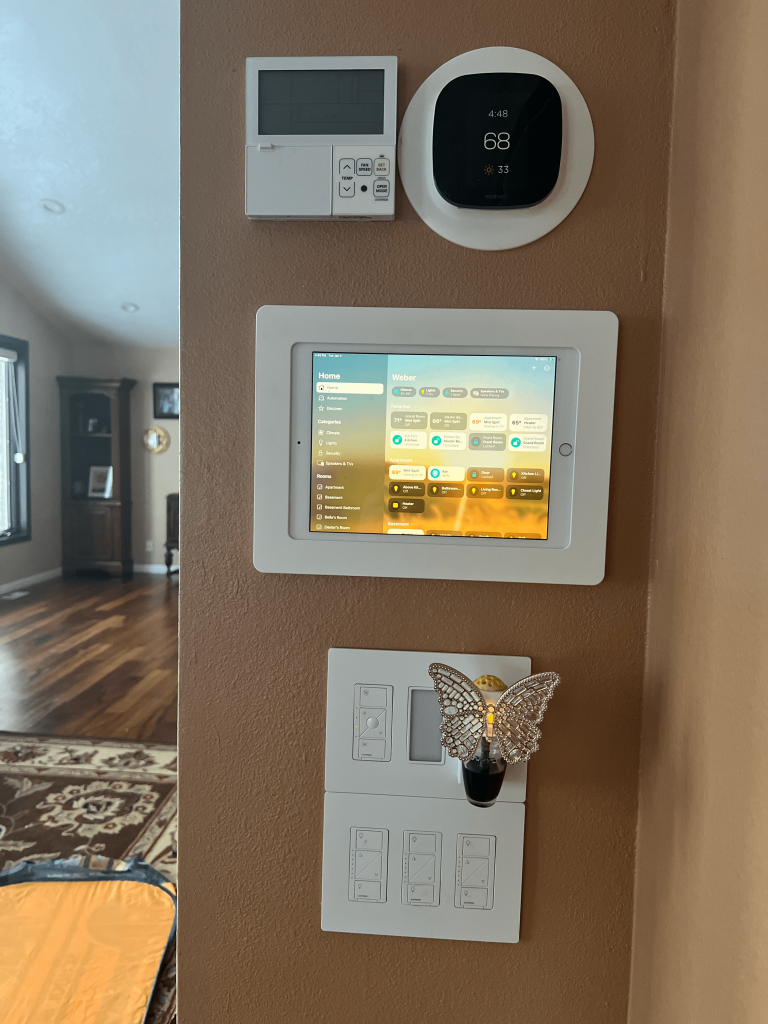
Imagine controlling your entire home with just a few taps on your iPad. Sounds like something from the future, right?
But it’s easier than you think. You can turn your iPad into a powerful hub that manages lights, security cameras, thermostats, and more—all from one sleek device. If you want to make your home smarter and your life simpler, this guide will show you exactly how to use your iPad for home automation.
Keep reading, and you’ll discover tips that save you time, boost your comfort, and even cut down your energy bills. Ready to transform your living space? Let’s dive in.
Setting Up Your Ipad For Home Automation
Setting up your iPad for home automation makes daily tasks easier and more efficient. The process starts with choosing the right tools and connecting your devices. A well-prepared iPad acts as a central hub to control lights, locks, thermostats, and more.
Choosing The Right Apps
Select apps that match your smart devices and needs. Some apps work with many brands, while others focus on specific products.
- Check app compatibility with your smart home devices.
- Look for apps with good user reviews and regular updates.
- Choose apps that offer easy setup and clear instructions.
- Consider apps supporting voice control or automation routines.
Download apps from the App Store and keep them updated for best performance.
Connecting To Your Smart Devices
Connect your iPad to smart devices through Wi-Fi or Bluetooth. Follow each device’s setup guide carefully.
- Ensure all devices and iPad are on the same Wi-Fi network.
- Use the device app or Apple Home app for connection.
- Grant necessary permissions to allow smooth communication.
- Test each device by controlling it from your iPad.
Organize devices into rooms or zones in the app for easier control.

Credit: www.instagram.com
Essential Apps For Smart Home Control
Controlling your smart home from an iPad is simple with the right apps. These apps connect your devices and let you manage them easily. Choosing the best apps improves your home automation experience. It saves time and keeps your devices working smoothly.
Homekit Integration
Apple’s HomeKit app is a key tool for smart home control on iPad. It allows you to organize and control all HomeKit-compatible devices in one place. You can:
- Turn lights on or off
- Adjust thermostat settings
- Lock doors remotely
- Create automation rules like turning off lights at bedtime
The app offers a clean, easy-to-use interface. It also supports Siri voice commands for hands-free control.
Third-party Automation Apps
Many third-party apps extend your iPad’s smart home control beyond HomeKit. These apps support devices from different brands and add advanced features. Popular options include:
- IFTTT:Connects various smart devices to create custom actions.
- Google Home:Manages devices that work with Google Assistant.
- SmartThings:Controls a wide range of smart home products.
These apps offer more flexibility and customization. They help automate daily tasks based on your routines.
Creating Automation Routines
Creating automation routines on your iPad brings ease and control to your home. It lets you link smart devices to work together smoothly. You can make your home respond to your needs without lifting a finger. Routines save time and make your living space more comfortable.
Setting Up Scenes
Scenes group several smart devices to act at once. Use the Home app on your iPad to create a scene. Choose lights, thermostats, and other devices to include. Name the scene, like “Evening Relax” or “Morning Boost.” Tap to activate the scene anytime or use it in routines. Scenes bring a perfect mood with one tap.
Scheduling And Triggers
Schedules make routines run automatically at set times. Set your iPad to turn off lights at bedtime or start the coffee maker in the morning. Triggers activate routines by actions or conditions. For example, open the front door to turn on hallway lights. Use your location, device status, or sensor data as triggers. These options keep your home responsive without manual control.
Voice Control With Siri
Voice control with Siri makes home automation easier and faster. Siri lets you control smart devices using your voice. This hands-free option is perfect for busy moments or when you are away from your iPad. Using simple voice commands, you can manage lights, locks, thermostats, and more. It helps create a smart home experience without complicated steps.
Configuring Siri Commands
Start by setting up Siri on your iPad. Go to Settings and enable “Listen for ‘Hey Siri’.” Connect your smart home devices to the Home app. Assign names to each device for easy recognition. You can create custom phrases for specific actions. For example, say “Good night” to turn off all lights and lock doors.
- Open the Home app and tap “Add Accessory.”
- Follow the on-screen steps to connect devices.
- Use the “Create Shortcut” option for custom commands.
- Test your commands by speaking to Siri.
Using Voice For Automation
Voice commands control your home instantly. Say “Turn on the living room lights” or “Set the thermostat to 72 degrees.” Siri understands simple phrases and executes tasks quickly. You can also run scenes that combine multiple actions. For example, saying “Movie time” can dim lights and close blinds simultaneously.
- Speak clearly and use device names you set.
- Use Siri to check device status, like “Is the front door locked?”
- Combine commands for faster control.
- Use voice control while away from home with HomeKit Secure Video.
Security And Privacy Considerations
Using your iPad to control home automation devices offers great convenience but also raises important security and privacy questions. Protecting your personal information and ensuring your smart home stays secure should be a top priority. Let’s look at how to keep your network safe and manage your data privacy effectively.
Securing Your Network
Your home Wi-Fi network is the gateway for your iPad and smart devices to communicate. If this network is weak, it opens the door for hackers. Make sure your Wi-Fi router uses strong encryption like WPA3 or WPA2.
Change default router passwords immediately. I once ignored this and found strange devices connected to my network. It was a quick reminder that default settings are an open invitation.
- Use a unique, complex Wi-Fi password combining letters, numbers, and symbols.
- Keep your router’s firmware updated to patch vulnerabilities.
- Set up a separate guest network for visitors or less secure devices.
Does your router support two-factor authentication? If yes, enable it to add an extra security layer. This simple step can significantly reduce risks.
Managing Data Privacy
Your iPad collects and stores a lot of sensitive information through home automation apps. Be cautious about what permissions you grant these apps. Not every app needs access to your location or microphone.
Review app permissions regularly and revoke any that seem unnecessary. I once left microphone access enabled for a smart speaker app and later found it was recording more than I expected.
- Use privacy settings within each app to limit data sharing.
- Check the privacy policies to understand how your data is used.
- Consider using apps from reputable developers with strong privacy commitments.
Think about where your data is stored—on your device, in the cloud, or both? Encrypt your iPad backups and use secure cloud services that offer end-to-end encryption. What steps can you take today to better control your digital footprint?
Troubleshooting Common Issues
Troubleshooting common issues is important for smooth home automation with your iPad. Many problems can be fixed quickly by checking a few settings. Staying calm and following simple steps helps to restore control fast.
Understanding typical issues saves time and frustration. Some problems relate to connectivity, while others involve app functions. This guide covers key points to check and easy fixes to try.
Connectivity Problems
Connectivity problems often stop devices from responding. Check if your iPad is connected to the right Wi-Fi network. A weak Wi-Fi signal can cause delays or loss of connection.
- Move closer to your router to improve signal strength.
- Restart your router and iPad to refresh connections.
- Make sure your home automation devices are powered on and connected to the same network.
- Update your iPad’s software to the latest version.
- Forget and reconnect to your Wi-Fi network if needed.
Sometimes, network interference from other devices can cause trouble. Limit the number of devices using the Wi-Fi at once. Check your router settings for any limits or blocks on smart devices.
App Functionality Challenges
Apps control your home automation system. If an app crashes or freezes, try closing and reopening it. Clear the app cache or restart your iPad for better performance.
- Ensure the app is updated to the latest version.
- Check if the app has proper permissions to access your network and devices.
- Reinstall the app if problems persist.
- Look for any alerts or messages inside the app for clues.
Some features may not work if the app is incompatible with your iPad model or iOS version. Review the app’s requirements before updates. Contact app support for help if basic fixes fail.
Expanding Your Smart Home Ecosystem
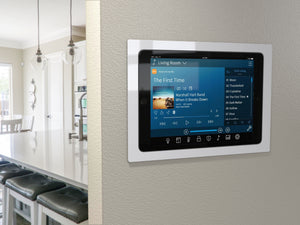
Expanding your smart home ecosystem with an iPad creates a seamless control center. This device lets you manage multiple smart gadgets from a single screen. It improves convenience by combining different technologies. An iPad helps connect new devices smoothly and unlocks new features. This approach makes your home smarter and more responsive to your needs.
Adding New Devices
Start by choosing devices compatible with your iPad’s smart home app. Popular options include smart lights, thermostats, and security cameras. Use the app to scan for nearby devices and follow on-screen instructions. Group devices by room or function for easy access. Regularly update device firmware to maintain performance and security.
Enhancing Functionality
Use your iPad to create custom scenes that control multiple devices at once. Set schedules to automate lighting, heating, and other systems based on your routine. Enable voice commands through Siri for hands-free control. Integrate your smart home with other apps for weather updates or energy monitoring. Test new features often to find what works best for your lifestyle.
Credit: www.simplidock.com
Future Trends In Home Automation
The future of home automation is exciting and full of new possibilities. Advances in technology will make controlling your home easier and smarter. Your iPad will become an even more powerful tool to manage everything at home. Trends focus on making devices smarter, faster, and more connected.
Innovative Technologies
Smart homes will use artificial intelligence to learn your habits. Your iPad will adapt to your preferences automatically. Voice control will improve, letting you speak naturally to your devices. Sensors will become more precise, tracking movement, temperature, and even air quality. Devices will work together seamlessly, creating a smooth experience.
- AI-powered automation for personalized control
- Enhanced voice assistants with natural language understanding
- Advanced sensors for better environment monitoring
- Improved device connectivity and integration
Upcoming Features
New features will allow deeper control from your iPad. Expect better security options to protect your home data. Energy management tools will help save electricity and reduce bills. Augmented reality might help you visualize settings before applying them. Your iPad will support more devices with simpler setup processes.
- Stronger security and privacy controls
- Smart energy-saving modes and monitoring
- Augmented reality interfaces for easy adjustments
- Wider device compatibility and easier installation

Credit: www.facebook.com
Frequently Asked Questions
How Can Ipad Control Smart Home Devices?
IPad connects to smart devices via apps or Apple HomeKit. It allows remote control of lights, thermostats, and security systems easily.
What Apps Work Best For Ipad Home Automation?
Popular apps include Apple Home, Google Home, and Alexa. These apps offer seamless device management and automation on your iPad.
Is Ipad Compatible With All Home Automation Systems?
IPad supports most major smart home platforms, especially those compatible with HomeKit. Check device compatibility before purchasing to ensure smooth integration.
Can Ipad Automate Routines And Schedules?
Yes, iPad can create automation routines using HomeKit or third-party apps. These schedules automate tasks like lighting and temperature control effectively.
Conclusion
Using an iPad for home automation makes life simple and smart. Control lights, locks, and devices from one screen. Save time and energy with easy setups. Enjoy comfort and security with just a tap. Start small, then add more devices as needed.
The iPad fits well in any home style. Tech doesn’t have to be hard or confusing. Try it today to see how smooth life can be. Home automation with an iPad keeps things clear and handy.






