
Want to see who’s at your door without leaving your couch? Connecting your Ring Doorbell to your Samsung Smart TV lets you do just that.
Imagine instantly viewing your front door camera feed on a big screen the moment someone rings the bell. It’s not only convenient but also boosts your home security. In this guide, you’ll learn simple steps to link your Ring Doorbell to your Samsung Smart TV, so you never miss a visitor again.
Keep reading to make your home smarter and safer with just a few easy moves.
Compatibility Check
Before you try to connect your Ring Doorbell to your Samsung Smart TV, it’s important to check if your devices are compatible. Not all Ring models or Samsung TVs support this feature, so knowing what works will save you time and frustration. Let’s look at what to check on both ends to ensure a smooth setup.
Ring Doorbell Models
Ring offers several doorbell models, but not all of them can stream directly to a Samsung Smart TV. The most common models compatible with smart TV integration are:
- Ring Video Doorbell 2 and 3– These support basic live video streaming through smart devices.
- Ring Video Doorbell Pro and Pro 2– Known for higher resolution and enhanced features, they work well with Samsung Smart TVs.
- Ring Video Doorbell 4– Offers advanced motion detection and is compatible with most smart home systems, including Samsung TVs.
If you own an older or basic Ring model, it might not support the direct streaming feature. Check the Ring app or product details to confirm if your doorbell can connect to other smart devices.
Samsung Smart Tv Requirements
Not every Samsung Smart TV supports connecting to the Ring Doorbell. You need to confirm that your TV meets these requirements:
- Model Year:Samsung Smart TVs from 2018 or newer generally support the Ring app or can work with compatible apps.
- Operating System:Your TV should run on Tizen OS, Samsung’s smart TV platform, which supports the Ring app or SmartThings integration.
- App Availability:The Ring app must be available in your TV’s app store. If it’s not, your TV might not support direct streaming.
Have you checked if your TV’s firmware is up to date? Sometimes, updating the software unlocks new app compatibility. Take a moment to update your TV to avoid missing out on this feature.
By confirming these compatibility points, you’ll know if you can view your Ring Doorbell feed on your Samsung Smart TV or if you need alternative methods like using a connected streaming device or smartphone casting.
Credit: knowtechie.com
Necessary Equipment
Connecting your Ring Doorbell to a Samsung Smart TV needs the right equipment. This setup allows you to see who is at your door on the big screen. Having the proper devices makes the process smooth and easy.
Before starting, gather all necessary tools. Missing equipment can cause delays or issues. Check each item carefully to ensure compatibility and readiness.
Wi-fi Connection
A stable Wi-Fi connection is essential. Both your Ring Doorbell and Samsung Smart TV must connect to the same network. This connection allows seamless video streaming and real-time alerts on your TV.
- High-speed internet improves video quality.
- Strong signal reduces lag and interruptions.
- Secure network keeps your devices safe.
Smartphone Or Tablet
A smartphone or tablet is necessary to set up and manage your Ring Doorbell. Use the Ring app to link your doorbell to your Wi-Fi and Samsung Smart TV. This device acts as a bridge for initial configuration and control.
- Compatible with iOS or Android operating systems.
- Allows easy access to settings and notifications.
- Enables live view and two-way talk features.
Setting Up Ring Doorbell
Setting up your Ring Doorbell is the crucial first step to make sure your Samsung Smart TV can display its live feed. Getting the device installed properly and the app configured correctly will save you a lot of hassle later. It’s not just about mounting the doorbell; it’s about syncing everything so your home feels safer and more connected.
Installing The Device
Start by choosing a spot near your front door that gives a clear view of your entryway. The ideal height is about 4 feet from the ground, which captures faces well. If you’re like me, you’ll appreciate that a good angle reduces false alerts from passing cars or pets.
Use the included mounting bracket and screws to secure the doorbell. Make sure it’s tight and stable—wobbly devices can lead to blurry video. If you have a wired doorbell, connect the Ring to the existing doorbell wires for continuous power; otherwise, rely on the battery and charge it fully before mounting.
Don’t forget to test the doorbell button once installed. Hearing it chime inside your home confirms everything is wired correctly. You’ll want this working before moving on to the app setup.
Configuring The App
Next, download the Ring app from the App Store or Google Play if you haven’t already. Open the app and create an account or log in to your existing one. The app guides you through adding a new device, so follow the prompts carefully.
When prompted, scan the QR code on your Ring Doorbell or enter the setup code manually. This links the physical device to your app profile. I’ve found that having your smartphone close to the doorbell during setup speeds up the connection.
After the device is added, connect the Ring Doorbell to your Wi-Fi network. A strong Wi-Fi signal is critical—weak signals cause video delays and missed notifications. You can test your connection within the app and move your router or add a range extender if needed.
Once connected, customize your settings. Adjust motion sensitivity to reduce unwanted alerts and set up notification preferences. This is where you tailor the experience to your lifestyle, so the Ring works for you, not against you.
Credit: www.samsung.com
Connecting To Samsung Smart Tv
Connecting your Ring Doorbell to your Samsung Smart TV brings convenience right to your living room. It allows you to view who’s at your door without needing to pick up your phone. Let’s look at two simple ways to make this connection effective and smooth.
Using Smartthings App
The SmartThings app is your go-to tool for syncing your Ring Doorbell with your Samsung TV. You need to have both devices connected to the same Wi-Fi network for this to work.
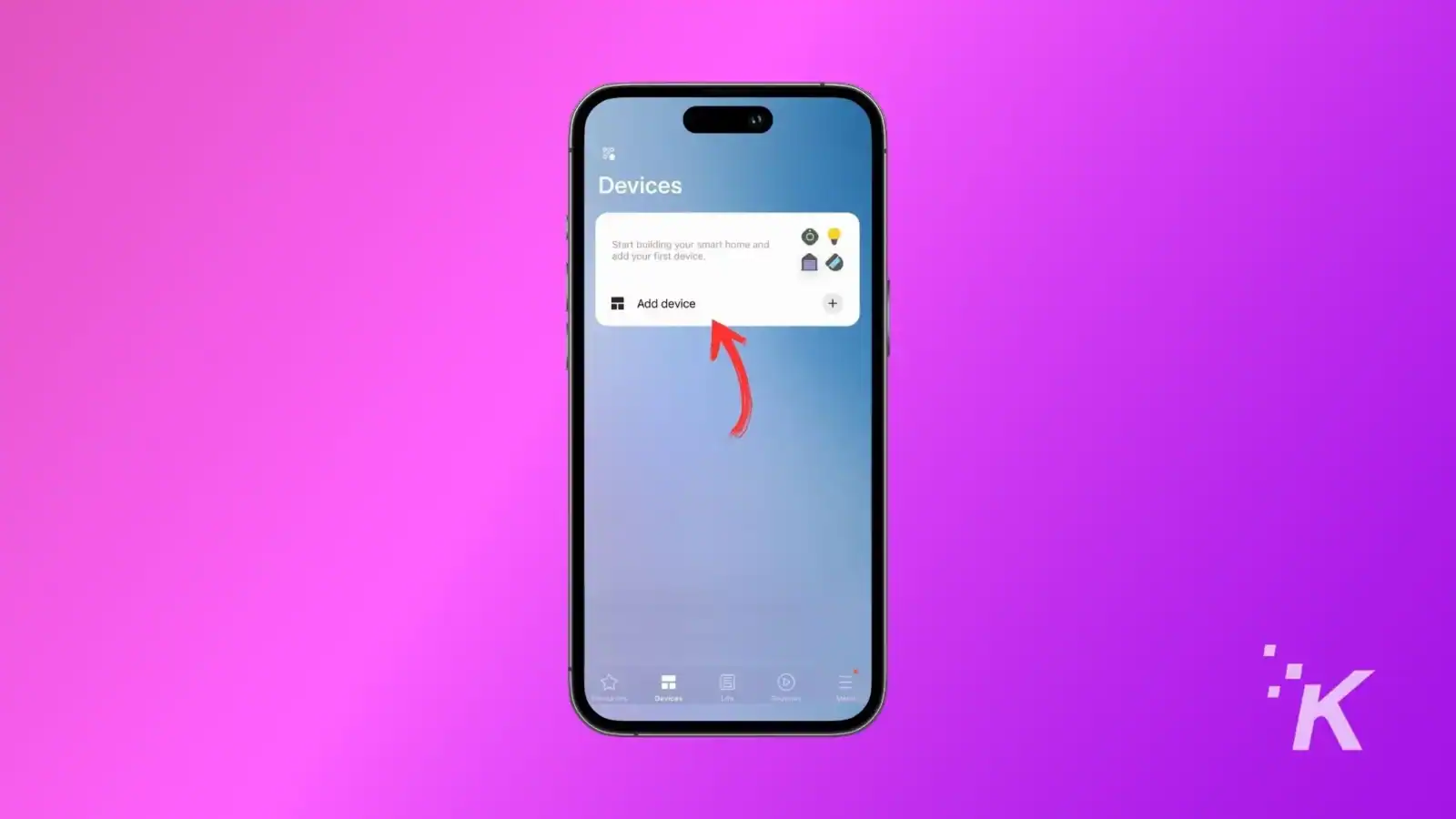
Open the SmartThings app on your smartphone and tap the “Add Device” option. Search for your Ring Doorbell in the list of compatible devices, then follow the on-screen instructions to connect it.
Once paired, you can access your Ring Doorbell’s live feed directly on your TV screen. This way, you get real-time notifications and video without interrupting your TV time.
Pairing Via Bluetooth
Bluetooth pairing offers a quick alternative if your Wi-Fi connection is unstable or unavailable. First, enable Bluetooth on both your Ring Doorbell and Samsung Smart TV.
Go to your TV’s settings menu, find the Bluetooth devices section, and select your Ring Doorbell from the list. Confirm the pairing request to establish the connection.
While this method is less common, it can be handy in certain situations. Have you tried Bluetooth pairing before? It’s worth testing if you want a backup connection option.
Troubleshooting Common Issues
Connecting your Ring Doorbell to your Samsung Smart TV should be seamless, but sometimes issues can arise that disrupt the experience. Troubleshooting these common problems can save you time and frustration. Let’s dive into some practical solutions you can apply right away.
Wi-fi Connectivity Problems
One of the most frequent issues is a weak or unstable Wi-Fi connection. Both your Ring Doorbell and Samsung Smart TV rely on a strong network to communicate smoothly.
- Check your Wi-Fi signal strength:Move your router closer to the devices or reduce interference from other electronics.
- Restart your router:Sometimes, simply rebooting your router can fix temporary network glitches.
- Update firmware:Ensure your router, Ring Doorbell, and TV have the latest firmware installed for better compatibility.
Have you noticed your video feed freezing or lagging? This often points to bandwidth issues. Consider limiting other devices’ internet use while streaming your doorbell’s feed.
App Compatibility Challenges
Another common hurdle is app compatibility between the Ring app and your Samsung Smart TV. Not all TV models support the Ring app natively, which can cause connection failures.
- Check your TV’s app store:Verify if the Ring app is available and updated on your Samsung Smart TV.
- Use alternative methods:If the app isn’t supported, try casting or screen mirroring from your smartphone to the TV.
- Clear app cache:Sometimes, clearing the app’s cache or reinstalling it can resolve unexpected glitches.
Did you realize that some Samsung TVs only support specific Ring features? This can affect live view or notifications. Testing different settings within the app can help identify what works best for your device.
Enhancing Security Features
Enhancing security features by connecting your Ring Doorbell to a Samsung Smart TV offers great peace of mind. It allows you to watch your front door live on a large screen. This setup helps you react quickly to visitors or unexpected activity outside your home.
By adjusting the settings, you control how and when you get alerts. This makes your home monitoring more effective and less intrusive. You can customize alerts to suit your daily routine and security needs.
Motion Detection Settings
Motion detection is key for smart security. You can set motion zones to focus on specific areas like your porch or driveway. This reduces false alarms from passing cars or animals.
- Adjust sensitivity to avoid too many alerts.
- Define zones to monitor important areas only.
- Test settings regularly for best results.
Setting these options helps you catch real threats without constant distractions.
Notifications And Alerts
Notifications keep you informed about any activity at your door. Your Samsung Smart TV can show live alerts or recorded videos instantly.
- Enable push notifications on your phone and TV.
- Choose alert sounds that grab your attention.
- Set quiet times to avoid alerts during sleep.
Clear and timely alerts improve your response time to visitors or potential intruders.
Future Integration Possibilities
Connecting your Ring Doorbell to your Samsung Smart TV is just the beginning of a smarter home experience. The future holds exciting possibilities that go beyond simple video streaming. Imagine your front door becoming a central part of your smart home ecosystem, seamlessly interacting with other devices to enhance security and convenience.
Upcoming Features
Ring and Samsung are constantly improving their technology. Soon, you might see features like two-way communication directly through your TV without needing a separate app. Motion alerts could pop up instantly on your TV screen, letting you respond faster than ever.
Another feature on the horizon is enhanced video quality and live-streaming options tailored for Samsung Smart TVs. This means clearer images and smoother video feeds, making it easier to identify visitors or package deliveries.
Smart Home Ecosystem Expansion
Your Ring Doorbell won’t just be a standalone device. It will integrate more deeply with other smart home gadgets, such as smart lights, locks, and security cameras. Imagine your porch lights turning on automatically when your Ring detects motion and your TV displaying a live feed simultaneously.
Think about syncing your Ring alerts with Samsung SmartThings routines. You could set your home to lock doors, turn on cameras, and notify your TV when you’re away. How could this level of integration change the way you manage home security?
Credit: www.tiktok.com
Frequently Asked Questions
How Do I Connect Ring Doorbell To Samsung Smart Tv?
To connect, open the Samsung Smart TV app store and install the Ring app. Log in with your Ring account, then select your Ring Doorbell to view live feeds directly on your TV.
Can I View Ring Doorbell Alerts On Samsung Tv?
Yes, once connected, your Samsung Smart TV will display Ring Doorbell alerts. You get instant notifications and live video streams on the TV screen for easy monitoring.
Is Wi-fi Required To Link Ring Doorbell With Samsung Tv?
Yes, both your Ring Doorbell and Samsung Smart TV must be connected to the same Wi-Fi network for seamless live video streaming and notifications.
Which Samsung Tv Models Support Ring Doorbell Integration?
Most Samsung Smart TVs from 2018 onwards support the Ring app. Check your TV’s app store to confirm if the Ring app is available for your model.
Conclusion
Connecting your Ring Doorbell to a Samsung Smart TV makes home monitoring easier. You can see who is at the door without leaving your seat. The setup steps are simple and quick to follow. Make sure your devices are on the same Wi-Fi network.
Open the Ring app on your TV to start watching live video. This connection adds extra safety and convenience to your home. Try it today and enjoy peace of mind with just a glance at your TV screen.






