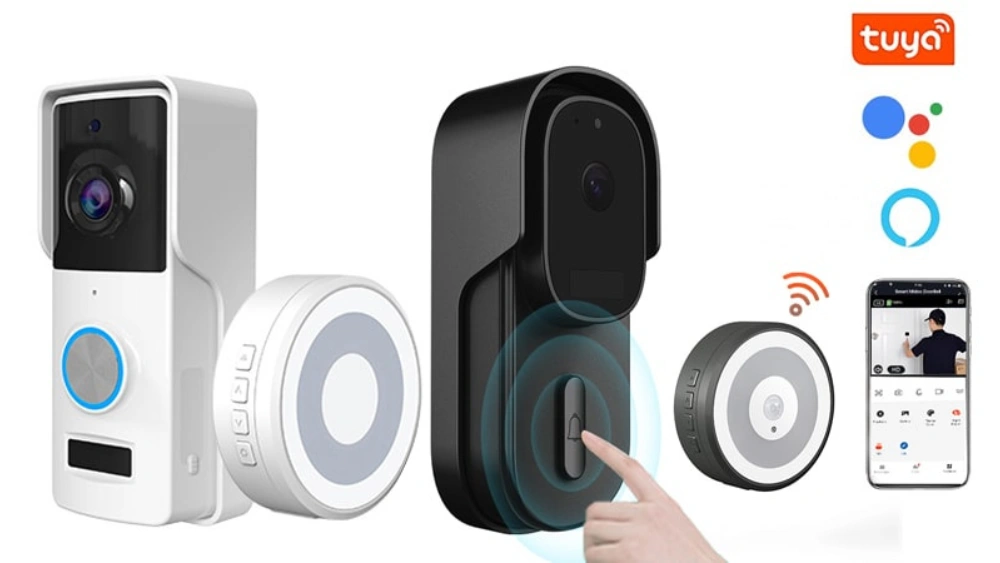
Are you ready to make your home smarter and safer? Connecting your Tuya Smart Doorbell is easier than you think.
With just a few simple steps, you can start seeing who’s at your door from anywhere, right on your phone. Imagine the peace of mind you’ll have knowing you never miss a visitor or delivery. Keep reading, and you’ll discover how to set up your Tuya Smart Doorbell quickly and effortlessly—no technical skills needed!

Credit: anjielo.com
Unboxing The Tuya Smart Doorbell
Unboxing the Tuya Smart Doorbell offers the first glimpse into your new home security. The package contains everything needed for installation and setup. Each component is designed to work together seamlessly. Carefully checking the contents ensures you have all parts before starting.
Opening the box reveals the smart doorbell unit, mounting hardware, and user manual. The doorbell itself has a sleek design and compact size. It feels sturdy and ready for outdoor use. The mounting kit includes screws and anchors for different surfaces.
The user manual provides clear instructions and troubleshooting tips. It also explains how to connect the doorbell to the Tuya app. The quick start guide helps you get the device working fast.
Contents Of The Tuya Smart Doorbell Box
- Tuya Smart Doorbell device
- Mounting bracket
- Screws and anchors
- USB charging cable (if rechargeable)
- User manual and quick start guide
- Warranty card
Inspecting The Doorbell Unit
Look over the doorbell for any damage from shipping. Check the camera lens and button for any marks. Ensure the charging port or battery compartment is intact. Confirm the button presses smoothly without sticking.
Reviewing The Installation Tools
Examine the mounting bracket and screws. The bracket should fit the doorbell securely. Screws must be suitable for your wall type. Keep the tools handy for the installation process.
Preparing For Installation
Preparing your Tuya Smart Doorbell for installation is a crucial phase that sets the foundation for a smooth setup. Taking time to gather the right tools and confirm compatibility saves you from frustration later. It also ensures the device works flawlessly with your home system.
Gathering Required Tools
Before you start, make sure you have everything on hand. Missing a tool mid-installation can stall your progress and increase stress.
- Power drill:Needed to mount the doorbell securely on the wall.
- Screwdriver set:Both Phillips and flathead screwdrivers are often necessary.
- Level:To make sure your doorbell sits straight and looks professional.
- Measuring tape:Helps to position the doorbell at the optimal height.
- Wire strippers:Useful if you need to connect wiring for models requiring hardwiring.
- Smartphone or tablet:Essential for app setup and device configuration.
Having these tools ready prevents interruptions and makes the installation process more enjoyable. Did you ever start a project only to realize you lacked a simple tool? Avoid that hassle here.
Checking Compatibility
Not all smart doorbells fit every home. Your Tuya Smart Doorbell might need specific wiring, Wi-Fi strength, or door frame dimensions.
First, check your existing doorbell wiring. Some Tuya models require a low-voltage transformer, typically 16-24V. If you don’t have one, you may need to install it or opt for a battery-powered version.
Next, assess your Wi-Fi network. A strong and stable signal at your front door is essential for reliable video and notifications. If your signal is weak, consider moving your router or adding a Wi-Fi extender.
Finally, review the mounting area. Is there enough space for the doorbell’s size? Will it be protected from extreme weather? These details can affect both installation and long-term performance.
Have you thought about these compatibility points before buying your smart doorbell? Skipping this step can lead to unnecessary returns or technical headaches down the line.
Setting Up The Tuya Smart App
Setting up the Tuya Smart App is the first crucial step to get your smart doorbell working smoothly. The app acts as your control center, allowing you to receive alerts, view live video, and manage settings all from your smartphone. Let’s walk through how to get the app ready for your device.
Downloading The App
Start by finding the Tuya Smart App on your phone’s app store. It’s available on both Apple App Storeand Google Play Store. Just search for “Tuya Smart” and look for the app with the official logo to avoid any confusion.
Make sure your phone is connected to a stable Wi-Fi or mobile network to speed up the download. The app size is relatively small, so it won’t take long. Once downloaded, open it up and get ready to move to the next step.
Creating An Account
To use the Tuya Smart App, you need to create an account. Tap the “Sign Up” option and enter your email address or phone number. You’ll receive a verification code — this extra step keeps your account secure and ensures you have access to all features.
Choose a strong password that you can remember easily. Think about a combination of letters and numbers. After filling in the details, accept the terms and conditions, then hit “Register.”
Have you ever felt frustrated by complicated account setups? Here, the process is designed to be quick and straightforward, getting you one step closer to controlling your smart doorbell effortlessly.
Connecting The Doorbell To Wi-fi
Connecting your Tuya Smart Doorbell to Wi-Fi is a crucial step to ensure it works seamlessly. Without a stable Wi-Fi connection, you might miss important alerts or have trouble streaming video. Let’s focus on how to get your doorbell online quickly and reliably.
Ensuring Strong Wi-fi Signal
Your doorbell needs a strong Wi-Fi signal to function well. If your router is far from the doorbell, the signal might be weak or spotty. Try placing your router closer or consider using a Wi-Fi extender to boost the signal near your front door.
Check your signal strength using your smartphone before connecting the doorbell. If the signal bars are low, you’ll likely face connectivity issues. Have you noticed any dead zones in your home? Fixing those spots can save you time and frustration.
Using The App To Connect
Download the Tuya Smart or Smart Life app from your app store. The app guides you step-by-step through the connection process. Open the app, create an account, or log in if you already have one.
Follow the prompts to add a new device, selecting the smart doorbell option. The app will ask you to enter your Wi-Fi password to link the doorbell to your network. Make sure your phone is connected to the same Wi-Fi network you want the doorbell to use.
Once connected, the app will confirm the doorbell is online. You can then customize settings, check the live feed, and receive notifications. Have you tried using the app’s setup instructions? They often save more time than guessing the steps.
Mounting The Doorbell
Mounting the Tuya Smart Doorbell properly ensures it works well and lasts long. The right placement helps capture clear video and detects visitors effectively. Follow simple tips to place and secure your doorbell for the best results.
Choosing The Right Location
Select a spot near your front door where visitors usually stand. The camera should have a clear view of the entryway. Avoid areas with direct sunlight or strong shadows to keep video clear.
Place the doorbell at about chest height for easy access. Check if the location has a stable Wi-Fi signal for smooth operation. Make sure the surface is flat and sturdy to hold the device securely.
Securing The Doorbell
Use the mounting bracket that comes with your Tuya Smart Doorbell. Fix it firmly to the wall using screws and anchors for extra support. Avoid loose fittings that can cause the doorbell to fall or tilt.
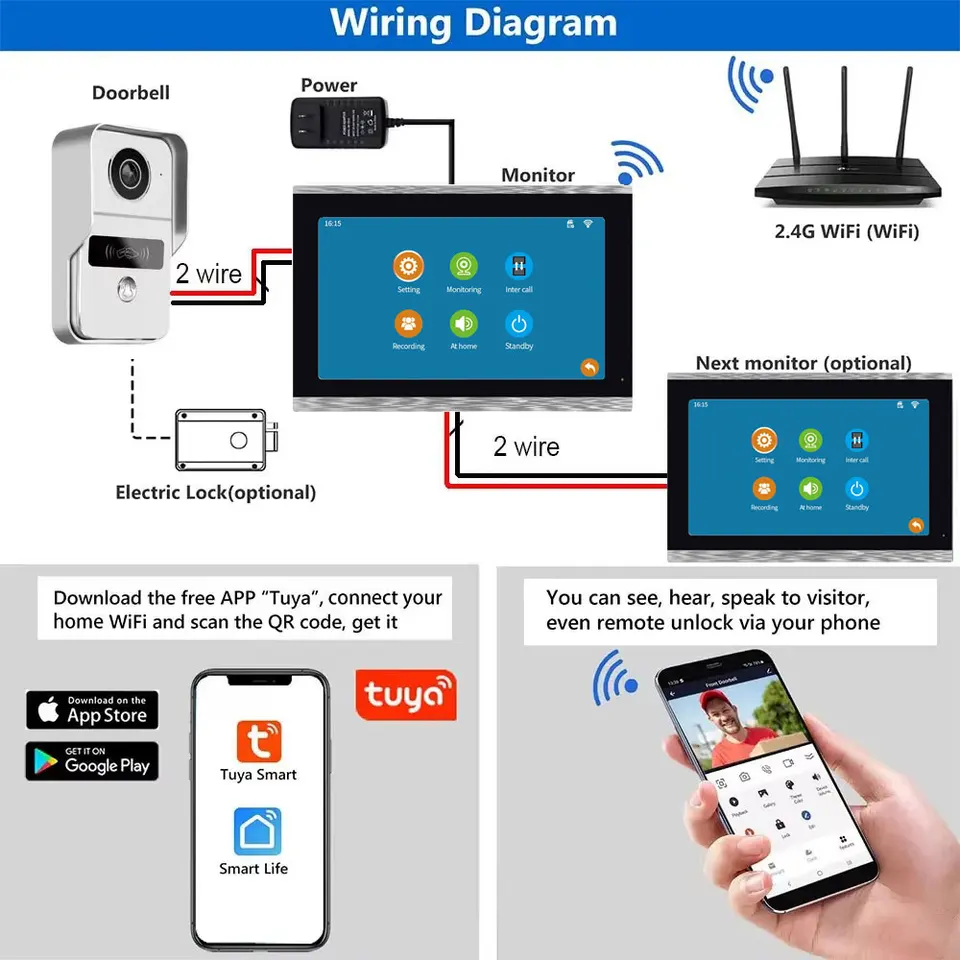
Double-check the doorbell is tightly attached to the bracket. Connect the wiring carefully if your model needs power from existing doorbell wires. Test the doorbell button to confirm it works before finishing the installation.
Credit: www.aliexpress.com
Testing The Doorbell Functionality
Testing the doorbell functionality is a key step after installation. It ensures everything works perfectly before you rely on it daily. This step helps catch any issues early. It also confirms the device meets your expectations for security and convenience.
Checking Video Quality
Start by viewing the live feed from your Tuya smart doorbell. Check the video clarity in different lighting conditions, such as daytime and nighttime. Look for sharp images without blurriness or lag. Make sure the camera angle covers your doorstep well. Test zoom features if available to see if details remain clear. Clear video helps identify visitors and enhances home security.
Testing The Notification System
Press the doorbell button to trigger a notification on your phone. Confirm the alert arrives promptly without delay. Check the sound and vibration settings to ensure you notice every ring. Test notifications while your phone is locked and unlocked. Verify the app displays visitor images or video clips accurately. Reliable notifications prevent missed visitors and improve your response time.
Troubleshooting Common Issues
Troubleshooting common issues with your Tuya Smart Doorbell can save you time and frustration. Many users face similar problems that can often be fixed quickly with a few simple steps. Identifying the root cause is key to getting your doorbell working smoothly again.
Resolving Connectivity Problems
If your Tuya Smart Doorbell won’t connect, start by checking your Wi-Fi signal strength. A weak or unstable connection is the most frequent culprit behind connectivity issues.
- Move your router closer to the doorbell or use a Wi-Fi extender to boost signal strength.
- Ensure your network is running on the 2.4 GHz band, as many smart devices don’t support 5 GHz.
- Restart your router and the doorbell device to refresh their connection.
Have you verified that your Wi-Fi password hasn’t changed recently? Incorrect login details often cause connection failures.
Fixing Audio And Video Issues
Audio or video problems can ruin the whole smart doorbell experience. If you notice distorted sound or a blank video feed, start by checking the app’s permissions on your phone.
- Make sure the app has access to your microphone and camera.
- Check if the doorbell lens is clean and free from obstructions like dirt or spider webs.
- Adjust the volume settings both in the app and on your phone to avoid muted alerts.
Sometimes, outdated firmware causes glitches in audio or video. Have you updated your doorbell’s software recently? Updating often resolves bugs and improves performance.
Credit: tuya-smarthome.co.za
Optimizing Doorbell Settings
Optimizing your Tuya Smart Doorbell settings ensures you get the most from its features while avoiding unnecessary alerts. Fine-tuning sensitivity and customizing notifications can make your daily interactions smoother and more secure.
Adjusting Sensitivity
Setting the right sensitivity level helps your doorbell detect visitors accurately without false alarms. Too high sensitivity might trigger alerts from passing cars or animals, while too low could miss important visitors.
Try adjusting the sensitivity in small increments. Pay attention to how often you get alerts and what triggers them. Does your doorbell notify you when neighbors walk by? If so, lowering the sensitivity can reduce interruptions.
Consider your home’s environment too. Busy streets or leafy yards may require different settings. Experiment to find the balance that fits your lifestyle and keeps you informed without overwhelming you.
Customizing Alerts
Custom alerts help you know exactly what’s happening without checking your phone constantly. You can choose different tones or vibrations for visitors, packages, or motion detection.
Think about how you want to be notified during different times of the day. You might want louder alerts during the day and quieter ones at night. The Tuya app allows you to schedule these changes automatically.
- Set unique ringtones for family members or frequent visitors.
- Enable push notifications only for package deliveries to avoid unnecessary alerts.
- Use do-not-disturb settings during meetings or sleep hours.
Have you tried customizing your alerts to match your daily routine? Small tweaks here can save you time and prevent stress from unwanted notifications.
Enhancing Security Features
Enhancing the security features of your Tuya Smart Doorbell adds extra layers of protection to your home. It helps monitor visitors more effectively and keeps your property safe. These features improve how you respond to alerts and manage access, giving you peace of mind.
Integrating With Other Devices
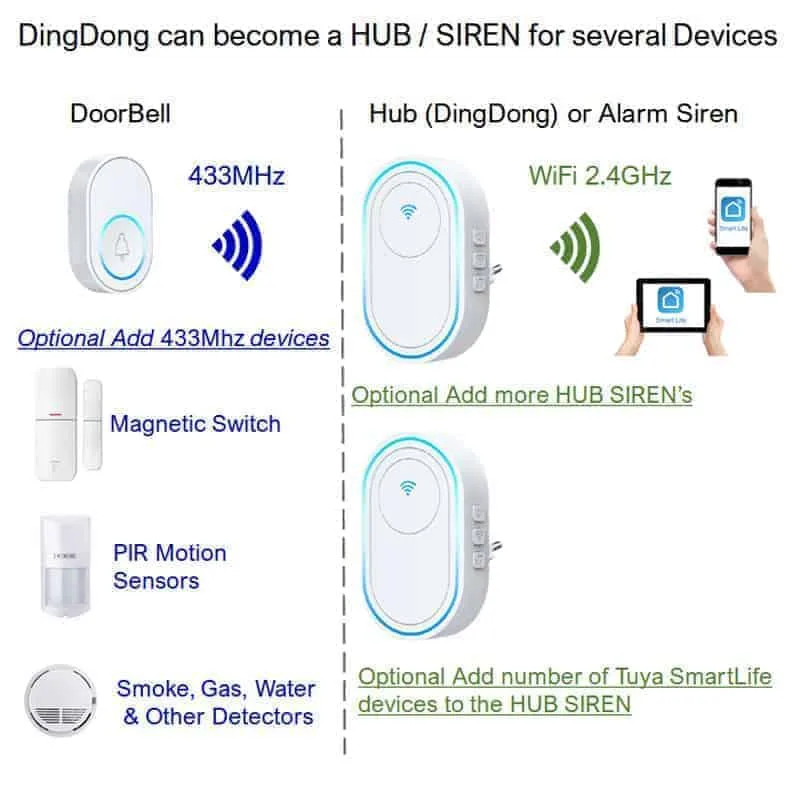
The Tuya Smart Doorbell can connect with other smart home devices easily. This integration creates a unified security system that works together. For example, linking it with smart lights can turn on porch lights when someone rings the doorbell. Connecting to smart locks allows you to control door access remotely.
- Sync with smart cameras for wider surveillance coverage.
- Pair with motion sensors to detect unusual activity.
- Use voice assistants to receive alerts hands-free.
Combining devices strengthens your home’s security network without extra hassle.
Using Cloud Storage Options
Cloud storage keeps your doorbell videos safe and accessible from anywhere. It saves recordings automatically, so you don’t miss any important event. Cloud plans often allow storing videos for days or weeks, depending on the subscription.
- Review past footage easily on your phone or computer.
- Share recordings with family or authorities if needed.
- Ensure videos remain safe even if the device is damaged.
Choosing a cloud storage plan boosts your ability to track and respond to security alerts.
Frequently Asked Questions
How Do I Set Up My Tuya Smart Doorbell?
To set up your Tuya Smart Doorbell, download the Tuya Smart app. Create an account, then follow the app’s step-by-step instructions to connect the doorbell to your Wi-Fi network and complete the installation.
What Wi-fi Frequency Does Tuya Doorbell Support?
Tuya Smart Doorbells support 2. 4 GHz Wi-Fi networks only. Ensure your router broadcasts a 2. 4 GHz signal for smooth connectivity and avoid 5 GHz networks, which are not compatible.
Can I Use Tuya Doorbell Without The App?
No, the Tuya Smart app is essential for setup and control. It allows you to receive alerts, view live video, and manage settings remotely on your smartphone.
How Do I Troubleshoot Tuya Doorbell Connection Issues?
First, check your Wi-Fi signal strength and ensure it’s 2. 4 GHz. Restart the doorbell and app, update firmware, and verify your smartphone has internet access for proper connection.
Conclusion
Connecting your Tuya Smart Doorbell is simple and quick. Follow each step carefully for best results. Make sure your Wi-Fi is strong and stable. Check the app settings to customize your doorbell. Test the device to confirm it works well.
Enjoy added security and convenience at your door. Keep your device updated for smooth performance. This guide helps you stay connected and safe.






