
Looking for a simple way to boost your home’s security? You’ve come to the right place.
Kwikset Smart Locks make locking and unlocking your door easier than ever. But how do you get started? In this guide, you’ll discover exactly how to use your Kwikset Smart Lock step-by-step. By the end, you’ll feel confident controlling your lock from your phone, setting up codes for family or friends, and keeping your home safe with just a few taps.
Ready to take control of your front door? Let’s dive in.
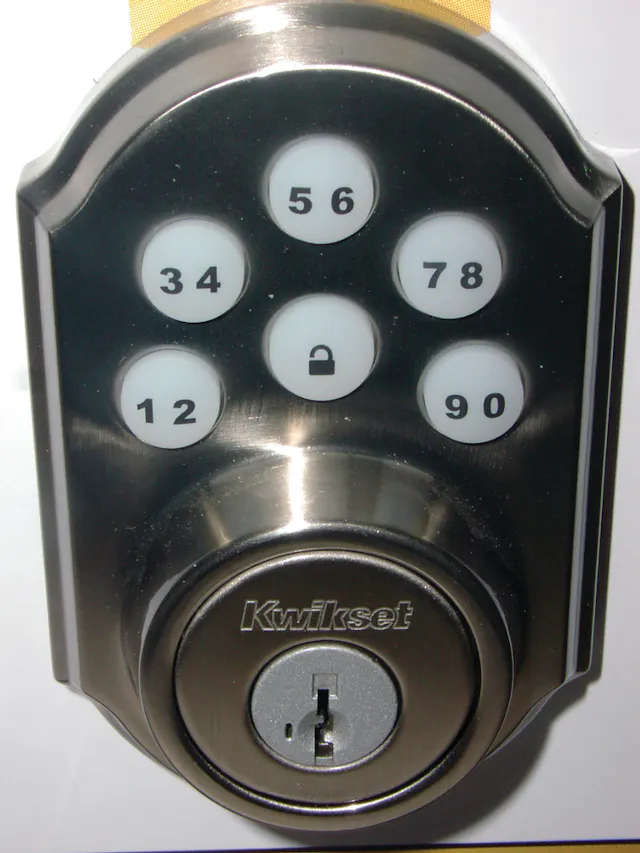
Credit: www.locksmithledger.com
Kwikset Smart Lock Features
Kwikset Smart Locks are designed to offer convenience and security, transforming the way you access your home. These locks come packed with features that simplify your life while enhancing safety. Let’s dive into some of the standout features that make Kwikset Smart Locks a popular choice.
Keyless Entry Options
Imagine never having to fumble for your keys again. With Kwikset Smart Locks, you can enjoy multiple keyless entry options that cater to your lifestyle. Whether it’s entering a code on a touchscreen or using a smartphone app, these locks provide seamless access. Plus, you can easily grant temporary access codes to friends or service providers.
Auto-lock And Unlock
Are you prone to forgetting to lock the door? Kwikset Smart Locks have got you covered with their auto-lock feature. Set the timer according to your preference, and rest assured your door will lock itself after a designated period. Additionally, some models offer auto-unlock, sensing your presence via your smartphone and unlocking the door as you approach.
Remote Access
Ever wished you could lock or unlock your door from anywhere? With Kwikset Smart Locks, this wish becomes a reality. Through remote access, you can control your locks using your smartphone, whether you’re at work or on vacation. It’s perfect for letting in guests or checking if you’ve locked up properly.
Integration With Smart Home Systems
Kwikset Smart Locks seamlessly integrate with various smart home systems, creating a unified home automation experience. Whether you’re using Alexa, Google Assistant, or another platform, these locks easily fit into your existing setup. Imagine controlling your entire home with simple voice commands—it’s more possible than ever.
Installing Your Kwikset Smart Lock
Installing your Kwikset Smart Lock is a straightforward process. It allows you to control your door’s security with ease and convenience. Preparing well before installation makes the setup smooth and quick.
Follow clear instructions and use the right tools. This ensures your lock works perfectly from the start. Let’s walk through the essentials and key steps to install your smart lock correctly.
Tools And Materials Needed
- Phillips screwdriver
- Flathead screwdriver
- Measuring tape
- Drill (optional, for new holes)
- Kwikset Smart Lock kit
- Mounting hardware (included in the kit)
- AA batteries (usually included)
Step-by-step Installation
- Remove the old lock from your door carefully.
- Check the door thickness; it should fit the new lock.
- Insert the deadbolt into the door edge and secure it.
- Attach the exterior keypad or key cylinder to the door.
- Connect the interior assembly to the exterior part.
- Secure the interior assembly with screws using a screwdriver.
- Install the batteries in the interior lock unit.
- Test the lock’s mechanical function by turning the thumb turn.
- Follow the user manual to program your smart lock settings.
Troubleshooting Common Issues
- Lock won’t turn: Check if the deadbolt is aligned properly.
- Keypad not responding: Replace batteries or reset the lock.
- Lock jams or sticks: Lubricate the bolt and hinges.
- App connection fails: Ensure Bluetooth or Wi-Fi is enabled.
- Programming errors: Follow the manual steps carefully or reset device.
Setting Up The Smart Lock App
Setting up the Kwikset Smart Lock app is the first step to control your lock remotely. The app allows you to manage access, check lock status, and receive notifications. Follow these simple instructions to get started with the app quickly.
Downloading And Installing The App
Find the Kwikset app in your device’s app store. It is available for both iOS and Android platforms. Search for “Kwikset Smart Lock” to locate the official app. Tap the download button and wait for the installation to finish. Ensure your phone has enough storage space for the app.
Creating Your Account
Open the app after installation. You will see an option to create a new account. Provide your email address and create a secure password. Follow the on-screen prompts to verify your email. Account creation lets you save your lock settings and access controls.
Pairing The Lock With The App
Turn on your Kwikset Smart Lock and enable Bluetooth on your phone. In the app, select “Add Device” or “Pair Lock.” The app will search for nearby locks. Choose your lock from the list and follow the pairing instructions. Confirm the connection by testing the lock through the app.

Credit: www.safewise.com
Managing User Access
Managing user access on your Kwikset Smart Lock keeps your home secure and organized. It allows control over who can enter and when. You can add or remove users, set specific times for access, and create temporary codes. These features help maintain safety without hassle.
Adding And Removing Users
Adding users is simple through the Kwikset app. Each user gets a unique code for entry. Removing users stops their access immediately. This prevents unwanted entry if someone no longer needs access. Keep track of all users in the app for easy management.
Setting Access Schedules
Access schedules control when users can enter your home. You can set daily or weekly time limits for each user. For example, allow cleaners only during work hours. This keeps your home secure outside those times. Scheduling access is flexible and easy to update anytime.
Temporary Access Codes
Temporary codes grant short-term access without permanent entry rights. Ideal for guests or service workers. You choose how long the code works, from hours to days. After expiration, the code becomes invalid automatically. This feature avoids sharing your main access code.
Enhancing Security Features
Boosting the security of your Kwikset Smart Lock goes beyond just locking the door. It’s about using the built-in features to protect your home actively and stay informed about any unusual activity. These options give you control and peace of mind, whether you’re home or away.
Enabling Auto-lock
Auto-lock is a simple yet powerful feature that ensures your door locks automatically after a set time. This prevents you from accidentally leaving your door unlocked, especially when you’re in a rush. You can customize the delay, so it fits your routine perfectly, whether it’s 30 seconds or a few minutes.
Think about the last time you doubted if you locked the door before leaving. Auto-lock solves that worry completely. Setting it up through the Kwikset app is straightforward, making your home safer without extra effort.
Using Alarm And Notifications
Kwikset Smart Lock can alert you instantly if someone tries to tamper with your lock or if it’s left unlocked for too long. These alarms act as an early warning system, helping you respond quickly to potential threats.
Notifications sent straight to your phone keep you connected even when you’re away. Imagine getting a message that your door was unlocked at an unusual time—that kind of insight lets you take immediate action.
- Set alerts for lock status changes
- Receive tamper and forced entry notifications
- Customize alerts based on your preferences
Regular Firmware Updates
Keeping your Kwikset Smart Lock updated is crucial for maintaining strong security. Firmware updates often fix vulnerabilities and add new protections that keep hackers out.
Updates install easily through the app, usually in minutes. Don’t skip them—ignoring updates is like leaving a back door open. Have you checked for the latest update on your lock recently?

Credit: www.sdmmag.com
Troubleshooting And Maintenance
Keeping your Kwikset Smart Lock running smoothly means staying on top of troubleshooting and maintenance. Small issues can often be fixed quickly at home, saving you time and avoiding the hassle of calling for help. Understanding how to handle common problems empowers you to keep your door secure and your smart lock performing at its best.
Battery Replacement Tips
Low battery warnings can catch you off guard, but replacing the batteries is straightforward. Use only high-quality alkaline batteries to ensure longer life and consistent performance.
- Remove the battery cover on the interior side of the lock carefully.
- Take out all the old batteries before inserting new ones to reset the power cycle.
- Insert new batteries with the correct polarity (+/-) as indicated inside the battery compartment.
If you’ve noticed your lock responds slower or the keypad dims, it’s a clear sign to check the batteries. Have you ever ignored a low battery alert and then found yourself locked out unexpectedly? Staying proactive here saves frustration.
Resetting The Lock
Resetting your Kwikset Smart Lock can fix persistent issues or prepare it for a new user. However, this action erases all programmed codes and settings, so make sure you’re ready to reprogram your lock afterward.
- Find the reset button on the interior side of the lock, usually behind the battery cover.
- Press and hold the reset button for about 10 seconds until the lock beeps or the LED flashes.
- Release the button and wait for the lock to reboot.
Once reset, you’ll need to re-add user codes and sync the lock with your smart home system. Have you ever had to reset your device? It can be a quick fix but requires some patience to set everything back up.
Handling Connectivity Issues
If your smart lock loses connection with your phone or smart home hub, it can feel like the lock stops working altogether. The first step is to check your Wi-Fi or Bluetooth settings, depending on your lock model.
- Ensure your phone’s Bluetooth is turned on and within range.
- Restart your router if the lock connects via Wi-Fi and seems offline.
- Try removing the lock from your smart home app and re-adding it to refresh the connection.
Sometimes interference from other devices or walls can weaken the signal. Have you noticed certain spots around your home where your smart lock connection drops? Identifying these can help you optimize your setup.
Frequently Asked Questions
How Do I Set Up My Kwikset Smart Lock?
To set up your Kwikset Smart Lock, install the lock on your door first. Download the Kwikset app, create an account, and follow in-app instructions to connect the lock to Wi-Fi. Customize settings and add user codes as needed.
Can I Control Kwikset Smart Lock Remotely?
Yes, you can control your Kwikset Smart Lock remotely using the Kwikset app. Ensure the lock is connected to Wi-Fi or a compatible smart home hub. This lets you lock, unlock, and monitor access from anywhere.
How Do I Add Or Delete User Codes?
Open the Kwikset app and select your smart lock. Navigate to the user codes section. Tap “Add” to create new codes or select existing ones to delete. Save changes to update the lock instantly.
Is Kwikset Smart Lock Compatible With Voice Assistants?
Yes, Kwikset Smart Locks work with voice assistants like Amazon Alexa, Google Assistant, and Apple HomeKit. Link your smart lock to the respective app for voice control and to check lock status hands-free.
Conclusion
Using a Kwikset Smart Lock brings ease to home security. Setup is simple and takes little time. You control who enters your home with your phone. The lock adds safety without extra keys to carry. Regular checks keep the lock working well.
Try these steps and enjoy smart, safe access every day. Your home feels secure and modern with this smart choice.






