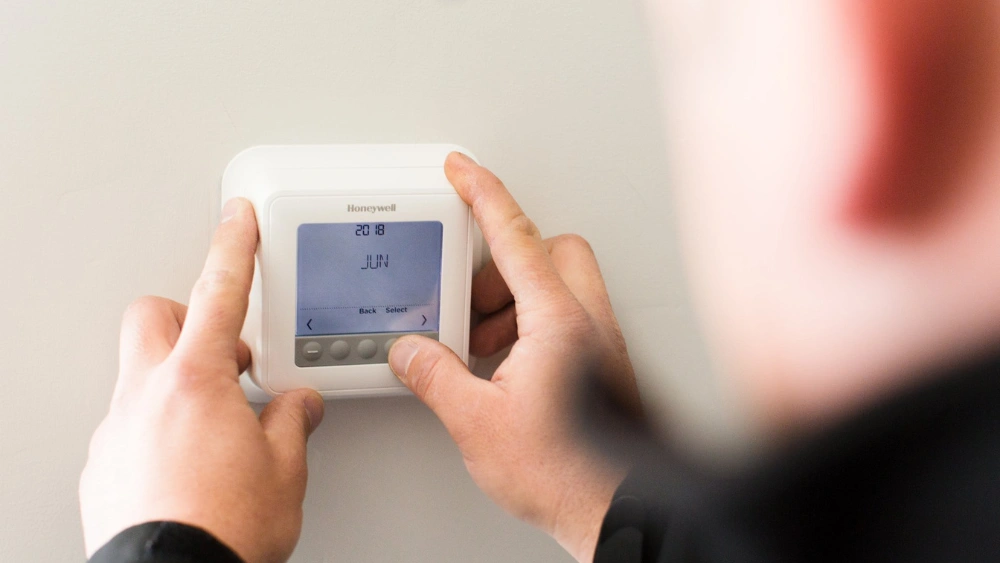
Is your Honeywell thermostat acting up or not responding the way it should? Knowing how to reset your Honeywell thermostat can save you time, frustration, and even money on unnecessary repairs.
Whether it’s freezing, not adjusting temperatures, or showing error codes, a simple reset might be all you need to get it back on track. In this guide, you’ll discover easy, step-by-step instructions to reset your Honeywell thermostat quickly and confidently.
Keep reading to take control of your home comfort without any hassle.
Identify Your Thermostat Model
Finding the exact model of your Honeywell thermostat helps ensure the correct reset steps. Check the front or back of the device for model numbers or names. This makes troubleshooting easier and faster.
Identifying your Honeywell thermostat model is crucial before resetting it. Different models have distinct reset processes. Understanding your specific model ensures you follow the correct steps. This guide will help you pinpoint your thermostat’s model type. Locating this information avoids frustration and saves time.Locate The Thermostat User Manual
Start by checking the user manual that came with your thermostat. The manual usually lists the model number. If you don’t have the manual, don’t worry. Other methods can help identify the model.Check The Thermostat Body
Inspect your thermostat closely. Often, the model number is printed on the thermostat’s body or on the back. Carefully remove the thermostat from the wall to see if the model number is hidden.Use The Honeywell Website
Visit Honeywell’s official website. They have a section for product identification. You can input details like design or features to find your model.Consult Customer Support
Honeywell’s customer support can assist you. Provide them with detailed information about your thermostat. They may help you identify the model through descriptions or photos.Check Online Forums And Communities
Online forums and communities can be useful. Many users share tips on identifying Honeywell thermostat models. Engage with these communities to seek advice and share your experiences.
Credit: unitedstatesolutions.com
Prepare For Reset
Before you dive into resetting your Honeywell thermostat, taking a moment to prepare can save you from unnecessary headaches. Proper preparation ensures the reset goes smoothly and protects your device from potential damage. Let’s look at what you need and how to safely power down your thermostat.
Gather Necessary Tools
Having the right tools on hand makes the reset process quicker and less frustrating. Typically, you’ll need a small screwdriver, especially if you have a model with a secured battery compartment.
Keep these items ready:
- Flathead or Phillips screwdriver (depending on your thermostat)
- New batteries (AA or AAA, if your model uses them)
- Soft cloth to clean the screen if needed
- User manual or quick-start guide for reference
Missing one tool can stall your progress. Have you ever started a task only to realize you lacked a simple item? Avoid that frustration here by preparing fully before you begin.
Turn Off The Thermostat
Powering off the thermostat is a critical step before resetting. This prevents any electrical issues and ensures the device resets correctly.
You can usually turn off the thermostat by pressing the power button or switching off the circuit breaker that supplies power to your HVAC system.
Remember, simply unplugging the thermostat might not cut power completely if it’s hardwired. Double-check your model’s power source to avoid surprises. Have you checked your thermostat’s power setup yet?
Reset Methods
Resetting your Honeywell thermostat can fix many common issues. Different reset methods help solve specific problems. Each method varies in how much data it erases or restores.
Choose the reset method based on your needs. Soft reset clears minor glitches without changing settings. Hard reset reboots the system but keeps your preferences. Factory reset wipes all data and returns the device to original settings.
Soft Reset
Soft reset is a simple restart of your thermostat. It clears temporary glitches and refreshes the system. To perform a soft reset, press and hold the power button for about 5 seconds. Release the button when the screen turns off. The device will restart automatically.
Hard Reset
Hard reset forces the thermostat to reboot without losing your settings. Press and hold the up and down arrow buttons simultaneously. Hold them for 10 seconds until the screen turns off. Release the buttons and wait for the device to restart. This reset helps if the thermostat freezes or stops responding.
Factory Reset
Factory reset restores your thermostat to its original state. It deletes all customized settings and schedules. To do this, open the menu on your thermostat. Navigate to the “Reset” or “Settings” option. Select “Factory Reset” and confirm your choice. The device will erase all data and restart. Use this only when other resets fail.
Step-by-step Reset Guide
Resetting your Honeywell thermostat can fix many common issues. It clears errors and restores default settings. Follow the simple steps below to reset your device safely. Choose the method that fits your thermostat model and preferences.
Using The Menu Button
Press the Menu button on your thermostat screen. Scroll through options using the arrow keys. Find the “Reset” or “Factory Reset” option. Select it by pressing the Enter or OK button. Confirm your choice if asked. The thermostat will restart and reset to default settings.
Using The Reset Button
Locate the physical reset button on your thermostat. It is often a small hole needing a paperclip or pin. Press and hold the reset button for about 5 seconds. Release it once the screen turns off or blinks. The thermostat will reboot and clear previous settings. This method quickly resets without navigating menus.
Resetting Via App
Open the Honeywell Home app on your smartphone. Connect to your thermostat through the app. Go to the settings or device options menu. Look for “Reset Thermostat” or similar. Follow the on-screen prompts to confirm the reset. Your thermostat will reset remotely and sync updated settings.
Troubleshooting Common Issues
When your Honeywell thermostat acts up, it can disrupt your comfort and daily routine. Identifying the root of the problem quickly helps you avoid unnecessary frustration and expenses. Let’s look at some common issues and how you can troubleshoot them effectively.
Thermostat Not Responding
If your thermostat screen is blank or unresponsive, the first thing to check is power. Make sure the thermostat is properly connected to its power source. Sometimes, a simple battery replacement can bring it back to life.
Have you checked if the circuit breaker has tripped? A quick glance at your home’s electrical panel could save you a service call. Also, inspect the wiring behind the thermostat for any loose connections.
Reset Not Completing
Occasionally, the reset process might stall or fail to complete. This often happens if there’s a software glitch or the thermostat’s memory is overloaded. Try unplugging the thermostat or removing the batteries for a few minutes before powering it back on.
Did you recently update your thermostat’s firmware? Updates sometimes cause temporary glitches—reverting or reinstalling the update might fix the issue. If your thermostat has a reset button, hold it down longer than usual, as some models require a 10-15 second press.
Connectivity Problems
Wi-Fi issues can prevent your thermostat from syncing with your smartphone app or smart home system. Start by checking your internet connection and router settings. Ensure your thermostat is within range of your Wi-Fi signal.
If you experience frequent dropouts, consider rebooting your router and thermostat simultaneously. Sometimes, changing your router’s frequency band from 5 GHz to 2.4 GHz can improve connectivity, as many Honeywell models prefer 2.4 GHz networks.
Have you tried removing the thermostat from your app and re-adding it? This can refresh the connection and solve many syncing problems.

Credit: www.youtube.com
Tips For Maintaining Your Thermostat
Maintaining your Honeywell thermostat ensures it works smoothly and lasts longer. Simple care steps prevent common issues and keep your home comfortable. Follow these easy tips to keep your thermostat in top shape.
Regular Cleaning
Dust and dirt can build up on your thermostat’s screen and sensors. Clean the surface gently with a soft, dry cloth. Avoid using water or harsh chemicals that may damage the device. Keep the area around the thermostat free from dust and debris.
Battery Replacement
Many Honeywell thermostats use batteries to stay powered. Check the battery status regularly to avoid unexpected shutdowns. Replace batteries at least once a year or when the low battery indicator appears. Use fresh, high-quality batteries for best performance.
Software Updates
Honeywell often releases updates to improve your thermostat’s features and security. Check for software updates through the thermostat menu or Honeywell app. Installing updates promptly helps your device run smoothly and adds new functions. Keep your thermostat connected to Wi-Fi for easy updates.

Credit: www.youtube.com
Frequently Asked Questions
How Do I Reset My Honeywell Thermostat Manually?
To reset manually, locate the reset button or remove batteries for 30 seconds. Replace batteries and restart the thermostat. This clears temporary errors and restores default settings.
When Should I Reset My Honeywell Thermostat?
Reset your thermostat if it’s unresponsive, showing errors, or not controlling temperature correctly. This helps fix glitches and improves performance.
Can Resetting Honeywell Thermostat Erase My Settings?
Yes, resetting often clears custom settings and schedules. Note your preferences before resetting to easily restore them later.
How Do I Reset A Honeywell Wi-fi Thermostat?
For Wi-Fi models, go to settings, select “Reset,” and confirm. This restores factory defaults and reconnects the device to your network.
Conclusion
Resetting your Honeywell thermostat is simple and quick. Just follow the clear steps shown above. This can fix many common issues fast. A proper reset helps your system work better. Keep your home comfortable without extra trouble. Remember to check the model’s guide if needed.
Taking care of your thermostat saves time and money. Now, enjoy a smooth and easy heating or cooling experience.






