
Are you ready to take control of your home’s security with a Kwikset Smart Lock? Programming your smart lock might sound tricky, but it’s easier than you think.
In this guide, you’ll learn simple, step-by-step instructions to set up your lock quickly and confidently. Imagine never fumbling for keys again and knowing exactly who can enter your home—all at your fingertips. Keep reading, and you’ll unlock the full potential of your Kwikset Smart Lock in no time.
Kwikset Smart Lock Features
Programming a Kwikset Smart Lock is simple and fast. Enter the master code, then add or delete user codes easily. This feature helps control who can enter your home without any hassle.
Unlocking the full potential of home security begins with understanding the features of your Kwikset Smart Lock. These high-tech locks are not just about keeping intruders out; they offer a range of intelligent features that can make your life easier and safer. Whether you’re upgrading your home security or exploring smart home devices, Kwikset Smart Lock’s features are worth considering.Keyless Entry Options
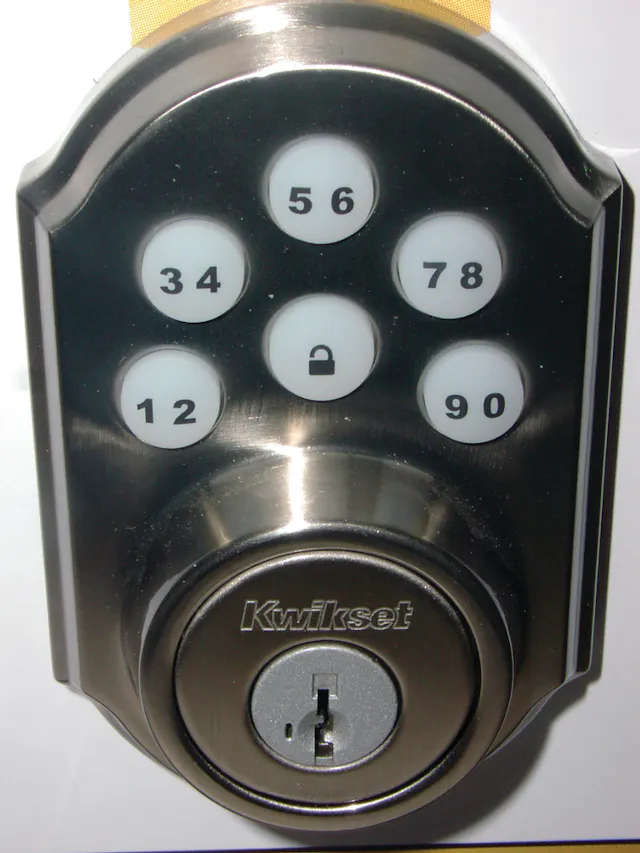
Imagine never fumbling for keys again. With Kwikset Smart Locks, you have multiple keyless entry options. You can use a keypad to enter a code, which is perfect when your hands are full of groceries. Some models even allow you to unlock with a simple touch of your smartphone. This flexibility means you can choose the option that best fits your lifestyle.Remote Access Capabilities
Ever had that sinking feeling of leaving home without locking the door? With Kwikset’s remote access capabilities, you can check and control your lock from anywhere. Using your smartphone, you can lock or unlock your door on-the-go. It offers peace of mind knowing you can secure your home even when you’re miles away.Security Enhancements
Security is a top priority with Kwikset Smart Locks. They are designed with features like advanced encryption to protect your access codes. Plus, you can set up temporary codes for visitors, ensuring you have control over who enters your home. These enhancements make Kwikset a reliable choice for protecting your loved ones. But what happens when technology fails? Have you ever considered the backup options for smart locks? With Kwikset, you can still use a traditional key if needed. This dual functionality ensures you’re never locked out, providing a balance between innovation and practicality. These features elevate the Kwikset Smart Lock beyond a traditional lock. How do you think these options could change your daily routine? Could they offer more convenience and security in your life?Preparing For Installation
Preparing for installation is a crucial phase when setting up your Kwikset smart lock. Taking time to gather the right tools, check your door’s compatibility, and install the batteries properly ensures a smooth and hassle-free experience. Skipping any of these steps might lead to frustration or even damage to the lock or your door.
Required Tools
Before you start, make sure you have the following tools ready:
- Phillips screwdriver
- Flathead screwdriver
- Measuring tape or ruler
- Pencil for marking
- Drill (only if your door needs new holes)
Having these tools at hand saves you from stopping mid-installation to search for something. I learned this the hard way during my first smart lock setup when I had to pause for a drill. Prepare your workspace and tools to keep momentum going.
Checking Door Compatibility
Not every door fits every smart lock. You need to measure your door’s thickness, backset (the distance from the edge of the door to the center of the lock hole), and check the type of door material.
- Standard door thickness usually ranges between 1 3/8″ and 1 3/4″.
- Backset measurements are typically 2 3/8″ or 2 3/4″.
- Ensure your door material can support the lock (wood, metal, or fiberglass are usually fine).
Have you ever tried installing a lock only to find it doesn’t fit? Double-check these measurements to avoid that problem. Your Kwikset lock manual also lists compatible door types and sizes for your model.
Battery Installation
The power source for your Kwikset smart lock is its batteries. Using fresh, high-quality batteries can prevent connectivity issues and lock malfunctions.
- Open the battery compartment on the interior side of the lock.
- Insert the recommended type and number of batteries, usually AA alkaline.
- Make sure the batteries are placed with correct polarity (+ and -).
When I skipped checking the battery polarity, my lock wouldn’t respond at all. Take a moment to align them correctly. Also, keep spare batteries handy for future replacements without delay.
Installing The Kwikset Smart Lock
Installing your Kwikset Smart Lock is a straightforward process. It involves removing the old lock, mounting the new device, and securing the entire assembly. Careful attention at each stage ensures smooth operation and security for your home.
Removing Old Lock
Start by unlocking your door and opening it wide. Use a screwdriver to remove screws from the interior side of the old lock. Take off the interior and exterior parts carefully. Pull out the latch mechanism from the door edge. Keep the screws safe; you might need them later.
Mounting The New Lock
Align the new latch with the hole on the door edge. Insert the latch and secure it with screws. Place the exterior part of the Kwikset lock on the outside of the door. Make sure the tailpiece fits through the latch. Position the interior assembly on the inside, matching holes for screws.
Securing The Assembly
Fasten all screws tightly to hold the lock firmly. Avoid overtightening to prevent damage. Attach batteries to the interior unit to power the smart features. Test the lock manually to check smooth movement. Close the door and test the electronic functions before finishing.

Credit: www.sdmmag.com
Programming User Codes
Programming user codes on a Kwikset smart lock allows you to control who can access your home. Each code can be unique and set with specific permissions. Managing these codes is simple and keeps your lock secure.
Adding New Codes
To add a new user code, start by entering the programming mode on your Kwikset lock. Use the master code or the default code if you have not changed it yet. Follow the lock’s voice or keypad prompts to enter a new user code. Choose a code that is easy to remember but hard to guess. Confirm the code by entering it again as instructed. Your new code will now grant access to the lock.
Deleting Existing Codes
Remove old or unused codes to keep your lock secure. Enter programming mode using the master code. Select the option to delete user codes. Enter the specific code you want to remove. The lock will confirm that the code is deleted. Repeat this for any other codes that need removal. This helps prevent unauthorized access.
Managing Code Settings
Adjusting code settings improves your lock’s security and convenience. Set time limits for user codes, allowing access only during certain hours. Enable or disable temporary codes for guests or service workers. Review and change codes regularly to maintain safety. Use the lock’s app or keypad to manage these settings easily. Proper management keeps your home secure and access organized.
Connecting To A Smart Home System
Connecting your Kwikset smart lock to a smart home system enhances control and security. It allows easy access management from anywhere. The process involves setting up Wi-Fi, linking to voice assistants, and using the mobile app. Each step ensures smooth integration with your home devices.
Wi-fi Setup
Start by connecting the lock to your home Wi-Fi network. Make sure the router is nearby for a strong signal. Use the Kwikset app to find available networks. Enter your Wi-Fi password carefully. The lock will connect and update its firmware if needed. A stable Wi-Fi link allows remote control and notifications.
Integrating With Voice Assistants
Link the smart lock with voice assistants like Alexa or Google Assistant. Open the assistant app and search for the Kwikset skill or action. Enable it and log in with your Kwikset account. Voice commands can then lock or unlock your door. This hands-free control adds convenience and safety.
Using The Mobile App
The Kwikset mobile app offers full control over your smart lock. You can lock or unlock remotely and check the door status. Set up user codes and receive alerts for activity. The app also guides you through initial programming steps. It keeps your smart lock easy to manage anytime.
Troubleshooting Common Issues
Programming your Kwikset Smart Lock can sometimes hit a snag. Troubleshooting these common issues quickly helps you regain control without frustration. Let’s break down frequent problems and how you can fix them effectively.
Lock Not Responding
If your lock doesn’t respond to keypad presses or app commands, start by checking the batteries. Low or dead batteries often cause unresponsiveness.
Try removing and reinserting the batteries to reset the lock’s electronics. If that doesn’t work, inspect for any physical damage or dirt blocking the keypad.
Have you ever been locked out because the lock froze? Sometimes, a full factory reset can bring the lock back to life. But remember, this will erase all your settings and codes.
Code Entry Problems
Entering codes correctly is crucial. If your lock keeps rejecting valid codes, verify the code length and format. Kwikset locks typically require 4 to 8 digits.
Make sure you are pressing the buttons firmly and waiting for the confirmation beep before proceeding. Sometimes moisture or grime on the keypad causes misreads.
If you recently changed the master code, double-check that you followed the programming steps exactly. Skipping a step or pressing the wrong button can invalidate your new codes.
Connectivity Challenges
Smart locks rely heavily on stable Bluetooth or Wi-Fi connections. If your lock won’t connect to the app, ensure your phone’s Bluetooth is on and within range.
Restarting your phone’s Bluetooth or the lock’s Wi-Fi module often resolves connection hiccups. Sometimes, interference from other wireless devices can disrupt signals.
Have you updated your app and lock firmware recently? Running outdated versions can cause compatibility issues. Keeping both up to date is essential for smooth communication.
Maintaining Your Smart Lock
Maintaining your Kwikset Smart Lock ensures it works smoothly and reliably every day. Simple care and timely updates keep your lock secure and responsive. Let’s dive into key maintenance tasks that make a big difference in your smart lock’s lifespan.
Battery Replacement Tips
Your Kwikset Smart Lock relies on batteries to function, so keeping them fresh is crucial. Always use high-quality alkaline batteries for longer life and consistent performance.
Watch for low battery alerts on your lock’s app or keypad. Don’t wait until the lock stops working—replace batteries at the first sign of weakness to avoid getting locked out.
When changing batteries, handle the lock gently to avoid damaging internal components. Keep spare batteries handy in your home or toolkit for quick swaps.
Firmware Updates
Firmware updates improve your lock’s security and add new features. Check the Kwikset app regularly for available updates and install them promptly.
Ignoring updates can leave your lock vulnerable or cause glitches. Updating your lock is usually quick and done over Wi-Fi or Bluetooth, so it fits easily into your routine.
Have you ever missed an update and noticed your lock acting strangely? Staying current can prevent those frustrating moments.
Regular Cleaning
Dust, dirt, and grime can affect your smart lock’s performance over time. Use a soft cloth to clean the exterior regularly, avoiding harsh chemicals that might damage the finish.
Focus on the keypad, fingerprint sensor, and keyhole areas to keep them free of debris. This simple habit helps your lock respond accurately to your inputs.
Cleaning your lock also gives you a chance to inspect it for any signs of wear or damage. Catching small issues early can save you from costly repairs later.
Credit: www.locksmithledger.com
Credit: www.youtube.com
Frequently Asked Questions
How Do I Reset My Kwikset Smart Lock?
To reset your Kwikset Smart Lock, press and hold the programming button for 10 seconds. The lock will beep and flash, indicating a reset. This deletes all codes and returns the lock to factory settings.
What Is The Default Programming Code For Kwikset Locks?
The default programming code is usually found on the lock’s packaging or user manual. It is a six-digit number required to start programming your Kwikset Smart Lock.
How Can I Add New User Codes To Kwikset Lock?
Enter the programming code, press the “Program” button, then enter a new user code followed by the lock button. This saves the new code for user access.
Can I Control Kwikset Smart Lock Remotely?
Yes, with the right Kwikset model and a compatible smart home hub or app, you can lock or unlock remotely using your smartphone.
Conclusion
Programming your Kwikset smart lock is simple and quick. Just follow each step carefully. This keeps your home safe and gives you control. You can add or delete codes anytime. No need to call a locksmith. Enjoy the convenience of keyless entry every day.
Stay secure with your new smart lock. Easy to use. Easy to trust.






