
Are you ready to boost your home’s security with a simple device? Installing the Merkury Smart WiFi Doorbell Camera can give you peace of mind by letting you see and talk to visitors from anywhere.
But if you’re wondering how to set it up without hassle, you’re in the right place. This guide will walk you through every step, making the process quick and easy—even if you’re not tech-savvy. Keep reading, and you’ll have your smart doorbell up and running in no time.
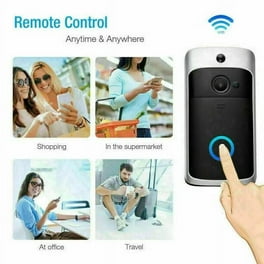
Credit: www.walmart.com
Preparing For Installation
Gather all tools and materials before starting the installation. Ensure your WiFi is strong near the door. Charge the doorbell camera fully for a smooth setup process.
Installing the Merkury Smart Wifi Doorbell Camera begins with preparation. A smooth installation starts with gathering the right tools and choosing the best spot for your camera. Make sure you have a strong WiFi signal where you plan to install the device. These steps ensure a hassle-free setup and optimal performance.Tools And Materials Needed
- Screwdriver
- Drill
- Level
- Mounting bracket (included with the camera)
- Screws (included with the camera)
- Anchor plugs (if needed)
- Smartphone with the Merkury app
Choosing The Installation Spot
Pick a spot that provides a clear view. Consider a height that captures faces and packages. Avoid placing the camera in direct sunlight or heavy shadows. Test the view using the camera before drilling holes.Checking Wifi Signal Strength
Strong WiFi ensures smooth operation. Use your smartphone to check signal strength at the chosen spot. Move your router closer if the signal is weak. Consider a WiFi extender for better coverage. Your camera needs a stable connection for video streaming.Setting Up The Doorbell Camera
Setting up the Merkury Smart Wifi Doorbell Camera is simple and quick. The process ensures your device works correctly and stays connected. Following a few easy steps gets your doorbell ready for use.
Charging The Battery
Start by fully charging the doorbell’s battery. Remove the battery from the device carefully. Use the included USB cable and plug it into a power source. The charging light will turn on, showing the battery is charging. Wait until the light turns off or changes color. This means the battery is fully charged and ready to install.
Downloading The Merkury App
Next, download the Merkury app on your smartphone or tablet. Open your device’s app store—Google Play or Apple App Store. Search for “Merkury Smart Home.” Tap the download or install button. Wait for the app to finish installing before opening it. This app controls your doorbell and gives you live video access.
Creating An Account And Logging In
Open the Merkury app after installation. You need to create a new account if you don’t have one. Enter your email address and create a password. Follow the prompts to verify your email. If you already have an account, simply log in with your credentials. Logging in connects your doorbell to your account and starts the setup process.
Mounting The Doorbell
Mounting the Merkury Smart Wifi Doorbell Camera is a straightforward process. It ensures your device stays secure and functions well. Proper mounting helps capture clear video and detect visitors accurately.
Follow these steps carefully to set up the doorbell perfectly on your wall or door frame.
Marking Drill Holes
Start by holding the mounting bracket against your chosen surface. Use a pencil to mark the spots for drill holes. Check the marks twice to ensure they line up straight. Avoid drilling too close to electrical wires or pipes. Use a level tool for perfect alignment.
Installing Mounting Bracket
Drill holes at the marked spots using a drill bit suitable for your wall type. Insert wall anchors if mounting on drywall or brick. Secure the mounting bracket with screws provided in the package. Tighten screws firmly to avoid any wobble. Make sure the bracket sits flush against the wall.
Attaching The Doorbell Camera
Align the doorbell camera with the mounted bracket. Slide or snap it into place according to the design. Check that the device locks securely onto the bracket. Test the stability by gently pulling the doorbell. Connect any wires or power sources if necessary before finalizing installation.
Connecting To Wifi
Connecting your Merkury Smart WiFi Doorbell Camera to your wireless network is a crucial step. This connection allows you to monitor your door from anywhere using your smartphone. The process is straightforward but requires attention to detail to ensure a stable link.
Before starting, make sure your WiFi network is active and your password is handy. The doorbell supports 2.4 GHz networks, so verify your router settings. A strong WiFi signal near your doorbell location improves performance and reduces connection drops.
Entering Network Details
Open the Merkury app on your smartphone. Follow the prompts to add a new device. The app will ask for your WiFi network name (SSID) and password. Type these carefully to avoid errors.
Ensure your phone is connected to the same WiFi network you want the doorbell to use. The app will send the network information to your doorbell via sound or QR code. Wait a moment for the device to connect.
Troubleshooting Connection Issues
Check the WiFi signal strength near your doorbell. Weak signals cause connection failures. Move your router closer or use a WiFi extender if needed.
Double-check the network name and password for typos. Remember, passwords are case-sensitive.
- Restart your router and doorbell camera.
- Make sure your phone is on the correct WiFi network during setup.
- Disable VPNs or firewalls that may block the connection.
- Reset the doorbell and try the setup process again.
If problems persist, consult Merkury’s support or user manual for detailed help.
Configuring Settings
Configuring the settings of your Merkury Smart WiFi Doorbell Camera lets you customize how it works. You can control motion alerts, notifications, and smart home connections. This setup helps the doorbell fit your lifestyle and keep your home safe.
Adjusting Motion Detection
Open the Merkury app and go to the device settings. Find the motion detection option. Adjust the sensitivity level to suit your needs. Higher sensitivity detects small movements but may cause false alerts. Lower sensitivity reduces false alarms but might miss some activity.
Set specific detection zones if available. This focuses the camera on important areas. Save your changes to activate the new settings.
Setting Up Notifications
Go to the notification settings in the app. Choose how you want to receive alerts—push notifications, email, or both. Enable real-time alerts to get instant updates about visitors or movement. You can also schedule quiet hours to avoid disturbances at night.
Check your phone’s notification permissions to ensure alerts come through. Test the notifications by triggering the doorbell or motion sensor.
Linking With Smart Home Devices
Access the smart home integration section in the app. Select the platform you use, like Alexa or Google Home. Follow the prompts to link your doorbell with the smart assistant. This connection allows you to control the doorbell with voice commands.
Test the integration by asking your smart speaker to show the doorbell camera feed or announce visitors. Keep the app updated to maintain compatibility with smart devices.

Credit: m.youtube.com
Testing The Doorbell
Testing the Merkury Smart Wifi Doorbell Camera is important to ensure it works perfectly. This step checks if the camera, audio, and alerts function well. A smooth test helps avoid problems later and guarantees security at your door.
Live Video Check
Open the Merkury app and connect to your doorbell. View the live video feed to see the camera’s clarity. Make sure the image is clear and the angle covers your doorway. Test in different lighting to check night vision. The video should stream without lag or freezing.
Audio And Microphone Test
Press the doorbell button and speak into the microphone. Listen to the sound through the app to confirm it is clear. Check the microphone picks up your voice without noise or echoes. Also, test the speaker to hear visitors clearly at your door. Good audio ensures easy communication with guests.
Ensuring Notification Alerts Work
Trigger the doorbell to send a notification to your phone. Check if the alert appears promptly and the sound is loud enough. Test alerts with the app closed to confirm background notifications. Quick and reliable alerts keep you informed of visitors anytime.
Maintenance Tips
Keeping your Merkury Smart Wifi Doorbell Camera in top condition ensures clear video and reliable performance. Regular maintenance helps avoid common issues. Simple care routines extend the device’s life and keep your home safe.
Battery Charging Schedule
Charge the battery before it runs out completely. Frequent partial charges keep the battery healthy. Avoid letting it stay at low power for long periods. Set a reminder to check the battery level weekly. Use the original charger for best results.
Cleaning The Camera Lens
Keep the lens free from dust and dirt. Use a soft, dry cloth to wipe gently. Avoid harsh chemicals or abrasive materials. Clean the lens every two weeks or after heavy rain. Clear lens improves video clarity and motion detection.
Updating Firmware
Check for firmware updates regularly in the app. Updates fix bugs and add new features. Download and install updates promptly to enhance security. Ensure the doorbell stays connected to WiFi during updates. Restart the device after updating to apply changes.
Credit: www.walmart.com
Frequently Asked Questions
How Do I Connect Merkury Doorbell To Wifi?
To connect, download the Merkury app and create an account. Follow in-app steps to link your doorbell to WiFi. Ensure your network is 2. 4 GHz for compatibility and stable connection.
What Tools Are Needed For Installation?
You’ll need a screwdriver, drill, level, and mounting screws. These tools help secure the doorbell properly on your wall or doorframe.
Can I Install The Doorbell Without Professional Help?
Yes, the Merkury doorbell is designed for DIY installation. The app guides you step-by-step, making the process easy and quick.
How Do I Reset The Merkury Smart Doorbell?
Press and hold the reset button for 10 seconds until the LED flashes. This restores factory settings, allowing you to reconnect or troubleshoot.
Conclusion
Installing the Merkury Smart Wifi Doorbell Camera is simple and quick. Follow each step carefully for the best results. This device helps you watch your door from anywhere. It adds safety to your home without extra hassle. Enjoy clear video and easy alerts on your phone.
Take your time setting it up right. Soon, you will feel more secure and connected. A smart doorbell is a small change with big benefits. Now, your home is ready for smarter protection.






