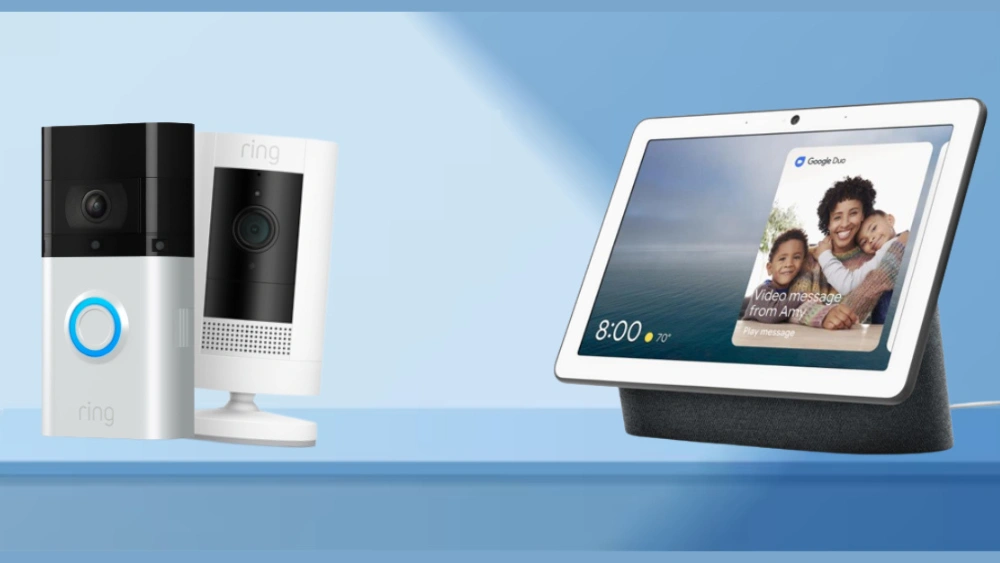
Have you ever wished you could see who’s at your door without leaving your couch? Imagine checking your Ring Doorbell’s live video right on your smart TV.
It sounds convenient, right? If you’re curious whether you can connect your Ring Doorbell to your smart TV and how to do it, you’re in the right place. This article will guide you step-by-step, making sure you never miss a visitor again.
Keep reading to discover how easy it can be to bring your home security to your biggest screen.
Ring Doorbell Features
The Ring Doorbell brings security and convenience to your doorstep. It offers various features that enhance your home’s safety and connectivity. Understanding these features can help you maximize its potential, especially when connecting to a smart TV.
Video And Audio Capabilities
The Ring Doorbell provides high-definition video, ensuring clear footage of your entrance. It captures wide-angle views, letting you see visitors from head to toe. Night vision enhances visibility in low-light conditions. Two-way audio allows direct communication with anyone at the door. You can greet guests or instruct delivery personnel effortlessly.
App And Device Compatibility
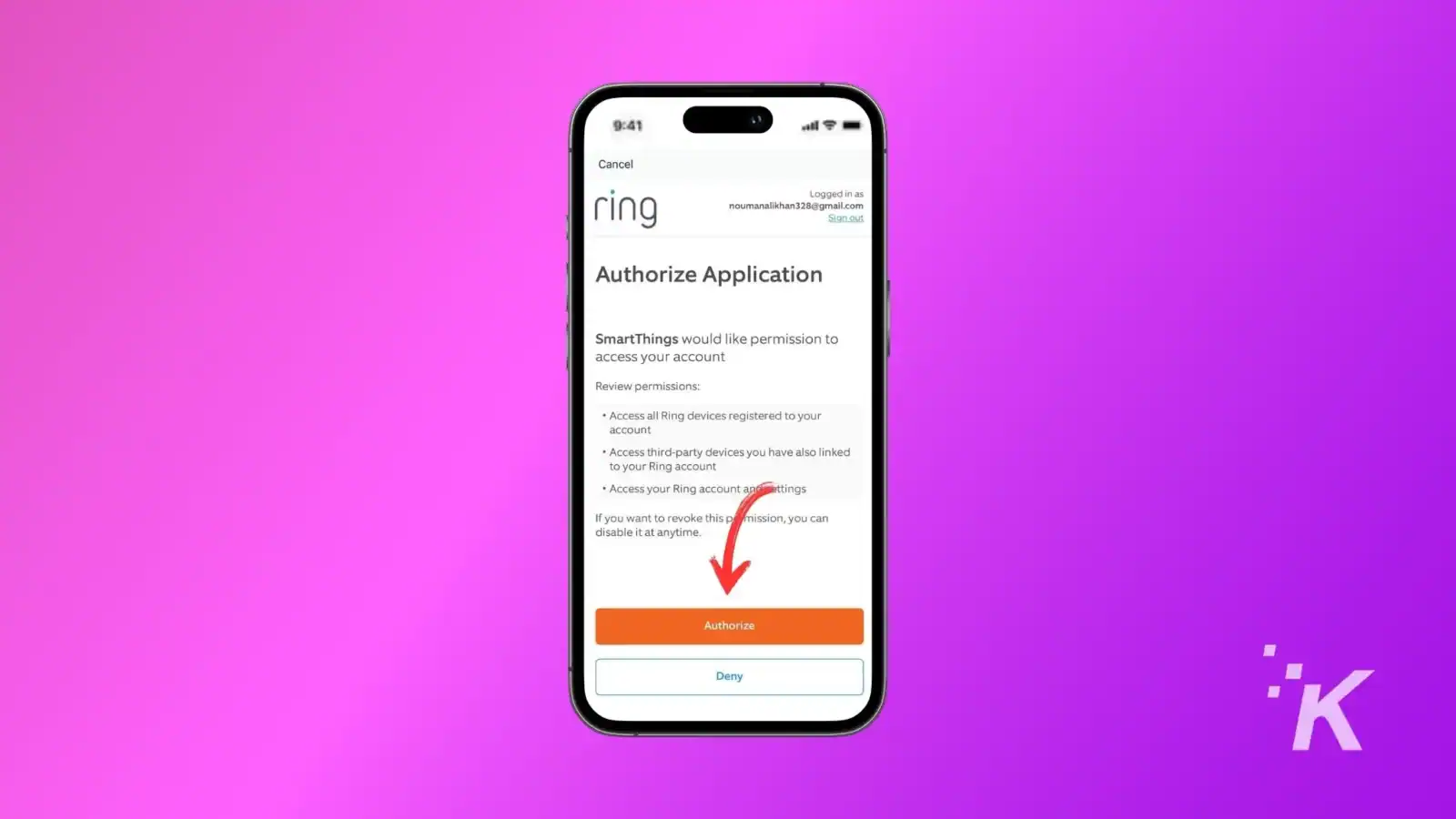
The Ring app integrates seamlessly with various devices. It supports smartphones, tablets, and computers, giving you control from anywhere. Connecting to a smart TV is possible with compatible devices. This integration enhances your viewing experience. Updates and alerts are displayed directly on your TV screen. The app ensures you never miss important notifications. It’s easy to manage security settings from a centralized platform.
Credit: knowtechie.com
Smart Tv Compatibility
Connecting a Ring Doorbell to a smart TV depends on the TV’s compatibility with the Ring app or supported platforms. Not all smart TVs can display the live feed from the doorbell. Knowing which brands and models support the Ring app helps avoid confusion. Compatibility also varies by the TV’s operating system and available apps.
Supported Brands And Models
Many popular smart TV brands offer compatibility with the Ring app or support screen mirroring features. These include:
- Samsung Smart TVs (models from 2017 and later)
- LG Smart TVs with webOS
- Amazon Fire TV devices connected to TVs
- Roku TV models
- Android TV models from Sony, TCL, and others
Older smart TVs or basic models may not support the Ring app directly. Some TVs allow screen casting or mirroring from smartphones, which works as an alternative.
Operating Systems And Apps
Ring app availability depends on the TV’s operating system. Here are the main systems and their support:
| Operating System | Ring App Support | Alternative Options |
|---|---|---|
| Android TV | Yes, Ring app available in Google Play Store | Direct installation and use of Ring app |
| Amazon Fire OS | Yes, Ring app available in Amazon Appstore | Use Fire TV to display Ring video |
| Roku OS | No native Ring app | Screen mirroring from mobile devices |
| Samsung Tizen OS | Limited Ring app support | Use Smart View or casting from smartphone |
| LG webOS | No native Ring app | Screen casting or mirroring from phone |
Screen mirroring works well if the TV or connected device supports it. It streams the phone’s screen, showing the Ring live feed on the TV. This method is common for TVs without a direct Ring app.
Connection Methods
Connecting your Ring Doorbell to a smart TV can enhance your home security experience by allowing you to see who’s at the door on a larger screen. There are several ways to make this connection, each with its own advantages and setup requirements. Understanding these methods helps you choose the best option for your devices and usage habits.
Using Native Apps
Many smart TVs come with app stores that may include the Ring app or compatible video apps. If your TV supports the Ring app natively, you can install it directly and log in to your account. This allows you to view live video feeds and receive alerts without needing additional devices.
Check if your TV’s app store offers the Ring app or a similar security app. Brands like Samsung and LG sometimes offer these apps. If available, this is usually the most straightforward way to connect your Ring Doorbell to your TV.
Casting Or Screen Mirroring
Casting or screen mirroring lets you display the Ring Doorbell video from your smartphone or tablet onto your smart TV. This method works well if your TV supports technologies like Chromecast, AirPlay, or Miracast.
To cast, open the Ring app on your phone and use the cast button to send the video feed to your TV. Screen mirroring duplicates your phone screen, so anything you do on the Ring app appears on your TV in real time.
Have you noticed how casting can sometimes lag? If you want smoother video, check your Wi-Fi strength and try to position your devices closer to the router. A strong network makes a big difference here.
Using Third-party Devices
If your smart TV doesn’t support native apps or casting, third-party devices can bridge the gap. Devices like Amazon Fire TV Stick, Roku, or Google Chromecast can be connected to your TV’s HDMI port and allow you to access the Ring app or cast your phone screen.
For example, connecting a Fire TV Stick gives you access to the Ring app from its app store. This setup often provides a more reliable and user-friendly experience than screen mirroring alone.
Consider your existing tech before buying new devices. Do you already have a streaming stick or box? Using what you have might save money and simplify setup.
Step-by-step Setup
Setting up a Ring Doorbell to a smart TV is simple. It lets you see visitors without reaching for your phone. This section guides you through the setup in easy steps.
Installing The Ring App On Smart Tv
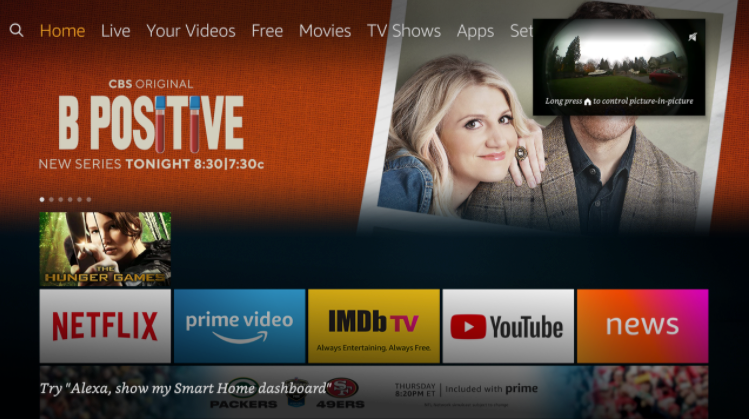
Start by turning on your smart TV and opening the app store. Search for the “Ring” app using the search bar. Select the app and click “Install.” Wait for the download to finish. Once installed, open the app from your TV’s home screen.
Linking Ring Doorbell To Tv
Sign in to the Ring app using your Ring account details. Choose “Set Up a Device” from the menu. Follow on-screen prompts to connect the doorbell to your Wi-Fi. Confirm the device appears in the app on your TV. This links your Ring Doorbell with the smart TV.
Testing The Connection
Press the doorbell button to trigger a live video feed. Check if the video shows up on your TV screen. Test audio to ensure two-way communication works. If video or sound is missing, check the Wi-Fi connection. Repeat the test until the connection is stable and clear.
Troubleshooting Tips
Connecting your Ring Doorbell to a smart TV can enhance home security. Sometimes, issues arise during setup or use. Troubleshooting helps fix these problems quickly. This section covers common problems, video quality tips, and ways to boost connectivity.
Common Issues And Fixes
- Ring Doorbell not showing on TV: Check app compatibility with your TV model.
- No sound or video: Restart both devices and check volume settings.
- App crashes or freezes: Update the Ring app and your TV’s software.
- Delayed notifications: Ensure your phone and TV are on the same network.
Improving Video Quality
- Adjust camera angle to avoid glare and shadows.
- Clean the camera lens regularly for a clear image.
- Lower streaming quality in the app to reduce lag.
- Use a wired connection for your TV if possible.
Connectivity Enhancements
- Place your Wi-Fi router closer to both devices.
- Use a Wi-Fi extender to boost signal strength.
- Restart your router to clear network issues.
- Limit other devices using bandwidth during streaming.
Credit: ring.com
Alternative Viewing Options
If you’re wondering how to view your Ring Doorbell feed on a bigger screen without a direct smart TV app, you have some handy alternatives. These options can help you keep an eye on your doorstep with ease and flexibility. Let’s look at practical ways to bring your Ring Doorbell’s live view to your television.
Smartphone To Tv Streaming
Streaming your Ring Doorbell feed from your smartphone to your TV is a simple and effective choice. Most smart TVs support screen mirroring or casting, allowing you to display your phone’s screen directly on the TV.
To do this, open the Ring app on your phone and start the live view. Then, use your phone’s casting feature—like Chromecast or AirPlay—to send the video to your TV. This method works well because you don’t need extra devices or complicated setups.
Have you tried this yet? You might be surprised how smoothly it works once you get the hang of it. Just make sure both your phone and TV are connected to the same Wi-Fi network for the best experience.
Using Voice Assistants
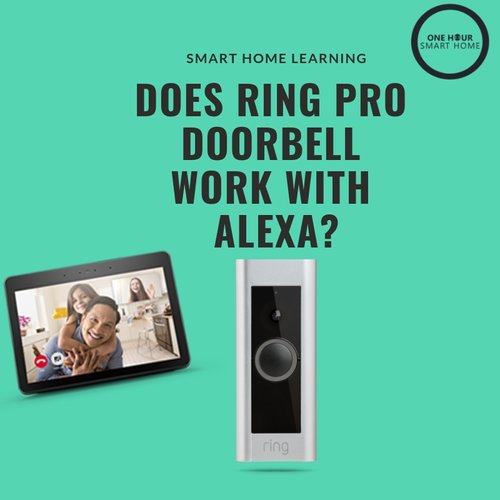
Voice assistants like Alexa and Google Assistant can make viewing your Ring Doorbell on TV even easier. If you have an Alexa-enabled smart TV or a Fire TV device, you can ask Alexa to show your Ring camera feed on the big screen.
For example, saying “Alexa, show the front door camera” will display the live video on your compatible TV. This hands-free approach lets you check who’s at your door without lifting a finger.
Not only does this add convenience, but it also integrates your security into your smart home routine. Are you already using voice commands for other devices? Adding your Ring Doorbell to that list can save you time and keep you more connected to your home security.
Security And Privacy Considerations
Connecting a Ring Doorbell to a Smart TV can improve convenience but raises important security and privacy questions. Protecting your data and controlling who accesses your video feed are key concerns. Understanding these factors helps keep your home safe and private.
Data Protection Measures
Ring uses encryption to protect video streams and stored data. This prevents outsiders from intercepting your footage. The app requires a secure login with two-factor authentication options. Regular software updates fix security bugs and improve protection. Always use a strong, unique password for your Ring account. Avoid sharing login details with others to reduce risks.
Controlling Access
Only authorized users should view your Ring Doorbell feed on the Smart TV. The Ring app lets you manage who can see live video and recorded clips. Set up user permissions carefully to avoid unwanted access. Many smart TVs allow guest modes or user profiles for added control. Disable automatic sharing features that send videos outside your trusted circle.
Credit: www.onehoursmarthome.com
Frequently Asked Questions
Can A Ring Doorbell Stream Directly To A Smart Tv?
Yes, you can stream Ring Doorbell video to some Smart TVs. This usually requires the TV to support the Ring app or screen mirroring features.
Which Smart Tvs Support Ring Doorbell Integration?
Most Samsung and LG Smart TVs support Ring via their app stores. Some Android TVs also allow Ring app installation for direct streaming.
How Do I Connect Ring Doorbell To My Smart Tv?
Install the Ring app on your Smart TV or use screen mirroring from your phone. Then, open the app or mirror your device to view the feed.
Is Alexa Required To View Ring On A Smart Tv?
Alexa can simplify the process but is not mandatory. Without Alexa, you can still use the Ring app or screen mirror manually.
Conclusion
Connecting a Ring Doorbell to a Smart TV is possible with the right setup. It lets you see visitors on a bigger screen easily. Most Smart TVs support apps or casting, making this simple. Just follow the instructions for your device carefully.
This connection adds convenience and safety to your home. Try it out to enjoy hands-free monitoring at your TV. Stay aware of your doorstep without needing extra gadgets. It’s a practical way to use your Ring Doorbell and Smart TV together.






